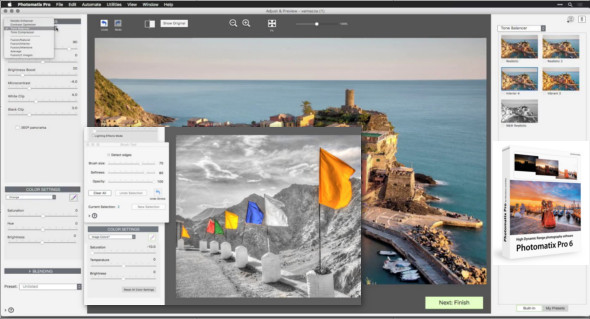
Photomatix is a photo software that allows you to take and merge your photos to easily create HDR renderings.
The merged images can then be adjusted by a series of options and parameters to achieve the appearance desired by the users — from natural results using exposure merging to pictorial, surreal or ultra-realistic images using tone mapping mode.
– Merge to HDR, tone mapping and exposure merging
– Automatic alignment of handheld photos
– Automatic ghost removal and selective defrosting tool
– Options for real estate photography
– Automation with batch processing
Advantages for professional photographers:
– Savings on lighting equipment. No need to buy expensive lighting equipment—and carry it—when shooting high-contrast scenes. Simply activate your camera's Auto Exposure Bracketing function and let Photomatix merge your photos into a single image with an extended dynamic range.
– Stunning photos on cloudy days. Hazy light without shadows or an overcast sky usually results in dull photos. Photomatix's tone mapping tool can transform them into stunning images. Look at this image as an example.
– Save time in post-processing. Photomatix Pro is designed for productivity — automatic blending, unlimited stacking, easy comparison of results and batch processing save hours of masking and layers work in image editing programs.
– Well-exposed panoramas. A panoramic scene is almost always a high-contrast scene—you can't limit your view to areas of equal brightness when shooting a 360° panorama. By taking shots at multiple exposures and processing them in Photomatix Pro, you can create a panorama that will show detail in both the dark and light areas of the scene. Photomatix Pro offers both exposure blending (also known as exposure fusion) and HDR tone mapping.
More style choices for realistic results
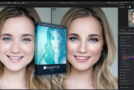
A new HDR style called Tone Balancer gives you more options for achieving a realistic look. You can access it via the "Realistic" preset.
Refining with more control over color
With the new interactive Brush and Lasso tools, you can change the color of specific parts of the image by painting over those areas. You can also adjust the saturation, hue, and brightness of individual colors.
Merge options
If you want a more realistic look, you can blend your original photo with the HDR image. You can also use the brush and lasso tools to merge or replace specific areas with the original or a different exposure from the brackets.
Straightening tool
If the horizon isn't horizontal or if vertical objects like buildings aren't perfectly vertical, you can quickly straighten your photo and correct perspective problems. This tool is part of the Finishing Touch palette.
Selective white balance new in v6.1
When processing bracketed RAW image sets, you can assign a different white balance to the lightest and darkest images.
Color scheme options New in v6.1
You can choose between a Dark or Light color scheme for the user interface. By default, the scheme is set to Light, although the interface where you adjust and finish the image is always under a dark scheme.
Configuration:
– Windows (x32/x64 Bits): XP, Vista, 7, 8, 8.1, 10
– Processor: 1 GHz
– RAM: 1 GB
Language : English
Size : 58.3 MB
This article was updated on July 28, 2018