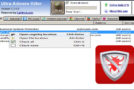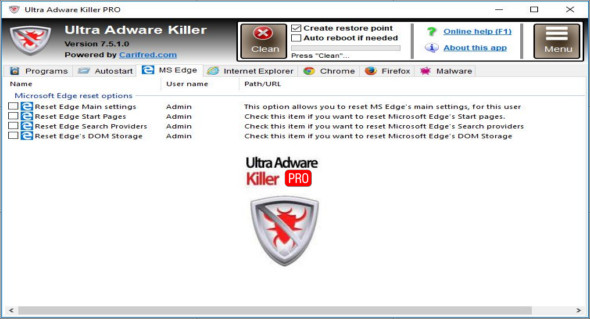
Ultra Adware Killer is a powerful tool for scanning, detecting, and removing adware and malware for all Windows users. It removes toolbars, advertisements, plugins, unwanted search engines and programs, Trojans, rootkits, ransomware, and all other forms of malware.
Searching for adware and malware
To start a scan, press the "Scan" button; this button will change to "Stop". You can press it again at any time during the scan to cancel it. The entire scan usually takes only a few seconds.
If you only want to scan the current user, deselect the "Scan all users" option before starting the scan. The SYSTEM account will still be scanned. The progress bar just below the "Start Scan" button will show you the scan's progress, and a text label below the progress bar will indicate which section is currently being scanned.
While the scan is running, you can review the items already found. Double-clicking an item automatically takes you to its location in the registry. You can also access the item's location in the file system, if available, by right-clicking the item's row and selecting "Open file location." This allows you to get a better overview of the item and decide whether or not to delete it.
Advice : To save time during the analysis process, uncheck the items you do not want to delete or the whitelist items you do not want Ultra Adware to display in future analyses.
You can quickly check/uncheck all items in the list: right-click the list to open it, and then select Check All or Check None, respectively. The context menu also includes an Open Registry Location menu item that performs the same action as double-clicking the list item, as described above.
Once the scan is complete, a message will tell you the number of items found. You can access the scan log by pressing the Menu button and then selecting the Show Scan Log menu item.
Configuration:
– Windows (x32/x64 Bits): XP, Vista, 7, 8, 8.1, 10
– Processor: 1 GHz
– RAM: 1 GB
Language : English
Size : 10.0 MB
This article was updated on August 29, 2018