
If you don't like the idea of someone using your computer stealing confidential information and files while you're away, then you can simply block the copying of files from your PC to any USB device.
To do this, nothing could be simpler: just go to the registry editor and add a key.
- Click the start button and then execute and enter the command regedit
- In the registry editor, go to HKEY_LOCAL_MACHINE > SYSTEM > CurrentControlSet > Control.
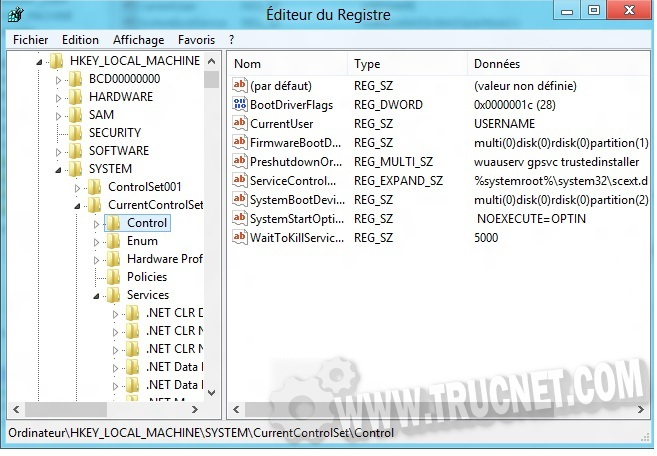
- Then click on the menu Edition > New > Key. Name this key StorageDevicePolicies.
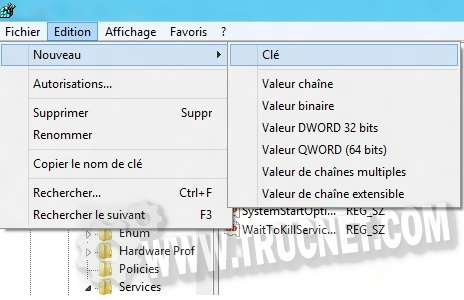
- Similarly, add a new 32-bit DWORD value to this key. To do this, click on the menu. Edition> New > 32-bit DWORD value that you will name WriteProtect.
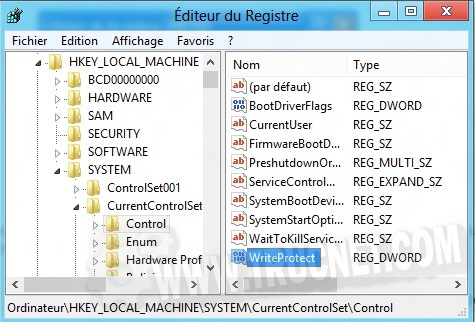
- Now, you need to change its value by double-clicking, entering "1" and confirming.
knowing that :
– 0 allows the transfer
– 1 prohibits the transfer

Simply plug in a USB drive, external hard drive, or memory card and try to copy a file to it to get a "no copying allowed" message. You can, of course, enable copying by changing the DWORD value to 0 instead of 1.
This article was updated on August 10, 2021