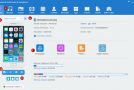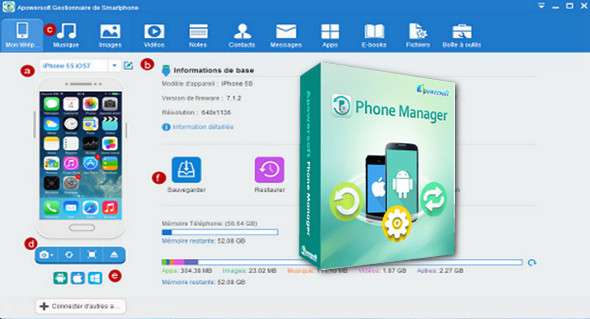
Apowersoft Phone Manager, one of the best mobile management software programs currently available, is fully compatible with the two main smartphone operating systems: iOS and Android. It allows you to easily manage, transfer, view, restore, and back up mobile or tablet files, including messages, contacts, applications, bookmarks, call logs, wallpapers, songs, videos, and more, on your PC.
– Automatically recognize the device with all the information
– Transfer all files from phone devices to PC and vice versa
– Works perfectly with iOS and Android based devices
– Manage photos, music, videos, SMS messages, contacts and other files
– Back up all kinds of data from your devices to your PC
– Restore mobile files from backups
– Take phone screenshots with a single click on your PC
– Display phone screens in different modes
Features:
Apowersoft's phone manager comes with other useful features such as one-click screenshots, full-screen display of phone frames on your PC, one-click junk file cleaning, and one-click rooting. All these features make it a perfect solution for managing files on your phone or tablet. Designed with a beautiful user interface, you'll have a wonderful experience using this phone file manager. And the processes of managing files, syncing your phone to your PC, restoring data to your tablet, taking phone screenshots, and more are very simple.
Easily transfer data between phone and computer
If you lose important files on your phone, you'll often want to transfer data from your phone to a PC for backup. This can be easily done using a mobile phone manager. Also, if you find beautiful images on your PC and want to save them as wallpapers or screensavers on your phone, simply connect your mobile to the PC and click the "Add" button to import them directly. This method is also available for transferring other local files such as videos, ringtones, game apps, songs, and so on to your mobile devices.
Connect to your mobile device in 3 ways
If you have the correct USB cable for your phone, use it to connect the phone to the PC, and the program will recognize it. If you don't have one, you can use Wi-Fi to connect the phone to the PC. Using the second method, please open the mobile device manager on your phone to obtain the verification code and enter it on your PC, then click the "connect" button. The third method is to scan the two-dimensional code to connect.
Supports all iOS and Android device series
While there are various types of phone managers you might encounter when searching online, most are not compatible with Android and iOS devices. This software offers you the most convenient way to control your iPhone, iPod, iPad, Samsung, Lenovo, Sony, LG, HTC, Motorola, Google Nexus, and more.
Sync and back up your phone's content
With Mobile Device Manager, it's very easy to sync files from your phone to a PC. In just a few steps, you can back up all your contacts, videos, bookmarks, documents, wallpapers, SMS messages, calendars, and more to your computer. But if you only need to back up specific items, you can also select them from your phone's library and move them to your PC.
Restore files from the previous backup on PC
Sometimes, you might accidentally delete important files stored on your phone or lose your device. It's truly a shame to lose all the cherished memories stored on your phone. We recommend backing up your phone every time you connect it to your computer. This way, you can recover your data anytime. The good news is that MobileManager can help you easily back up and restore your phone data.
Furthermore, if you're ready to switch to a new phone, you'll find it's never been easier. Simply click the "restore" button, and you can then sync all the data you've backed up on your computer to your new phone.
Manage, organize and edit phone SMS messages, photos, videos, music, etc.
Primarily, you can manage all the files on your phone in two ways using Apowersoft Phone Manager. First, you can add media files such as music, videos, and images from a computer to your iPhone. Second, your phone's content can be exported, deleted, moved, and updated directly on your PC. All you need to do is click a button. Furthermore, you can send messages, edit contacts, export call history as Excel files, set ringtones, and much more.
Display the mobile screen on a computer or laptop in real time
Although most electronics companies are inclined to develop phones with increasingly larger screens, it is still better to see things on a computer screen.
Configuration:
– Windows (x32/x64 Bits): XP, Vista, 7, 8, 8.1, 10
– Processor: 1 GHz
– RAM: 512 MB
– Disk space: 100 MB
Language Multilingual (including French)
Size 63.8 MB
This article was updated on October 26, 2017