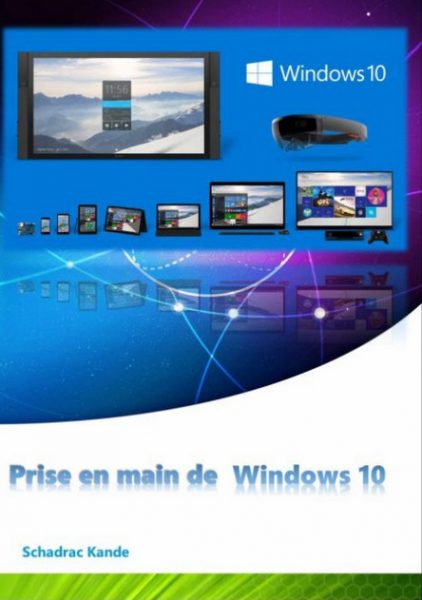
Whether you are a beginner or just need a refresher, the sections of this tutorial will introduce you to the basics of Windows 10.
Checking your email, visiting your favorite websites, commenting on your friends' news on social media: all these things require your PC to be connected to the internet. Learn how to connect and how to protect your information on a public network.
Whether you are a beginner or just need a refresher, the sections of this tutorial will introduce you to the basics of Windows 10.
Checking your email, visiting your favorite websites, commenting on your friends' news on social media: all these things require your PC to be connected to the internet. Learn how to connect and how to protect your information on a public network.
Sign in to your PC or tablet with a Microsoft account and you'll be automatically signed in to the Windows Store, your email, your social networks, and much more. Make sure you have one and learn how to set up accounts for other users of your PC or tablet.
The home screen is the starting point for everything you can do on your PC or tablet. It's the equivalent of the Start menu you're used to, but it's now displayed in full screen and you can personalize it with your apps, contacts, and photos.
The familiar and beloved desktop is still there. You can find programs for work or entertainment through apps in the Windows Store, directly from the desktop. Add your favorite apps to the taskbar and choose your preferred themes and backgrounds.
Learn the basics of navigation, including how to return to the home screen, switch between apps, and use apps side-by-side. Become more efficient with a touchscreen or mouse and keyboard interface, and discover key keyboard shortcuts.
Wherever you are on your PC or tablet, you can use the icons to perform basic actions. Learn how to search the web and your PC, share content like photos or websites, return to the home screen, print, use other devices, and change settings.
Search or browse the Windows Store to find apps that interest you. There are many to choose from, and most are free or offer a free trial. You can also learn how to use apps, change their settings, and close them.
Use the Mail app on your PC or tablet to view and reply to messages and organize all your inboxes. Learn how to set them up and add your accounts. You can also try the Outlook desktop app. It's free with Windows 10.
Visit your favorite websites with the latest version of Internet Explorer. Learn the basics of browsing and discover your browser's new features. Get tips on how to access your favorite sites faster and how to use Reader Mode to avoid being bothered by ads.
Personalize your Windows PC or tablet with your favorite photos, colors, and backgrounds. Show off your best side with a new account picture. Learn how to set up a picture password to log in to your PC with your favorite photo instead of a hard-to-remember password.
There are now two ways to save your files: you can save them locally on your PC or store them online using OneDrive cloud services. When you save your files to OneDrive, they are available on all your devices and accessible from anywhere. Sharing and collaboration become even easier.