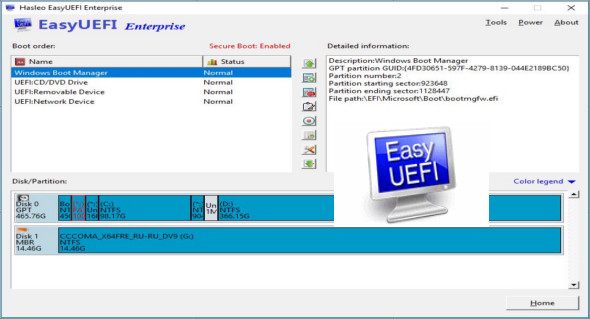
EasyUEFI has comprehensive EFI/UEFI boot option management functions, such as creating, deleting, modifying, cleaning, backing up, and restoring EFI/UEFI boot options, specifying a single boot entry for the next reboot, or changing the EFI/UEFI boot order—all these operations are performed within Windows without entering BIOS setup. You can also use Boot-US.
With EasyUEFI software, you can also create a bootable Windows PE image file. Once the image file is created, you can use it to create a bootable USB flash drive or use third-party burning software to burn it to a CD/DVD. With this Windows PE emergency disk, you can easily resolve EFI boot problems or repair the EFI system partition, such as a missing or corrupted EFI boot option, or a missing or corrupted EFI system partition.
Startup Options Manager
– Create, delete and modify an EFI/UEFI boot option
– EFI/UEFI boot option for backup and restore
– Disable and enable the EFI/UEFI boot option
– Boot into UEFI firmware settings (UEFI BIOS) from Windows
– Specifies a one-time startup option
– Modify the EFI/UEFI boot sequence
– Command line support
EFI System Partition Manager
EasyUEFI also offers a feature for managing EFI system partitions. This feature allows you to back up, restore, rebuild, rebuild the ESP (EFI) partition, or move an EFI system partition from one drive to another.
– Backup of the EFI system partition
– Restore the EFI system partition
– Recreate the EFI system partition
– Move the EFI system partition to another drive
– Manage EFI system partitions
– Create a Windows PE emergency disk
Version : Technician 6.2 /Portable: Technician 6.2 /WinPE: Technician 6.2
Language : Multilingual (French included)
Size : 37.56 MB / WinPE: 506.93 MB
Configuration:
– Windows (x32/x64 Bits): 7, 8, 8.1, 10, 11
Download EasyUEFI Technician v6.2 + Portable
Download EasyUEFI WinPE Technician v6.2 (x64)
This article was updated on January 14, 2026