
You may not know this, but deleting a file or folder leaves traces on your hard drive and this data can be recovered using specialized software… even after emptying the recycle bin.
It's important to know that when you completely delete a file, that is, when you remove it from the Recycle Bin, your computer doesn't actually erase the file completely. It simply says, "The space this file occupied is now free." But the information is still there!
If you want to completely erase certain data without any possibility of recovery by a malicious person, use Eraser. This software will repeatedly scan the space where your file is stored to overwrite all traces of it. When you delete a file with this utility, it will physically scan the entire location that contained the file and overwrite it with zeros.
Eraser allows you to erase a disk, file or folder on a one-off basis or to schedule its erasure at regular intervals.
How do I completely delete a file?
Step 1:
First of all, download Crush Once the program is installed, click on Ecrase Schedule then on New Task.
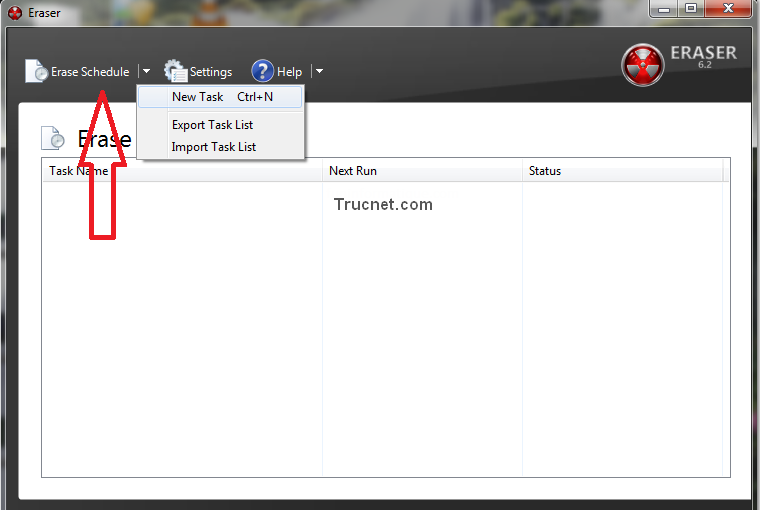
Step 2:
Next, click Add date To select the file to delete, Eraser offers you the option to delete the file immediately, after restarting, or manually. Make your selection and click OK.
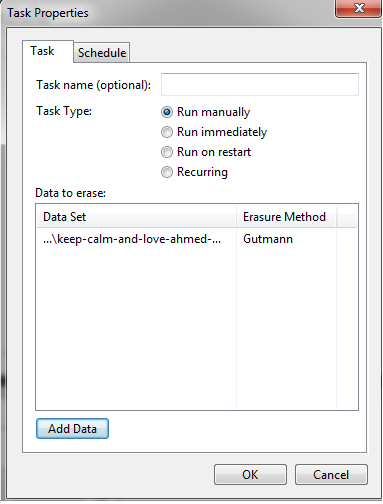
Step 3:
If you have selected Run manually Then right-click on the file you want to delete and select Run Now To completely delete the selected file. Once the process is finished, Eraser will present you with its report!
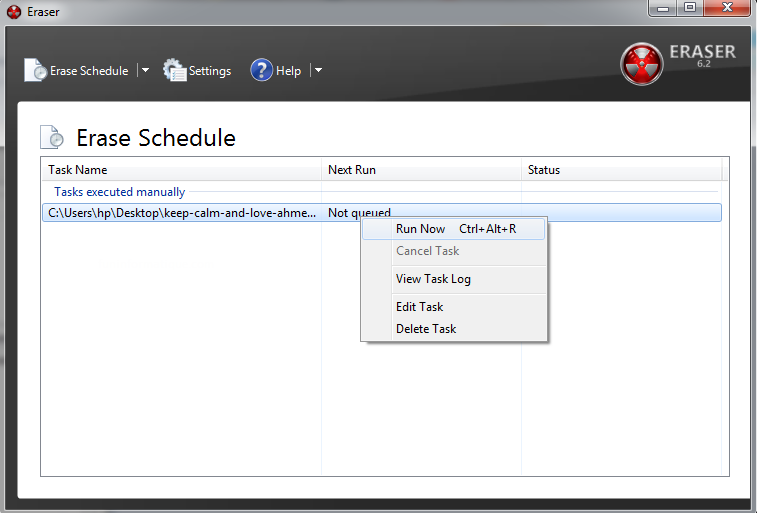
Note that the Eraser program is fully programmable to perform tasks at a specific time. This way, you simply specify the files or folders to be erased, and it will run when the time comes.
This article was updated on August 10, 2021