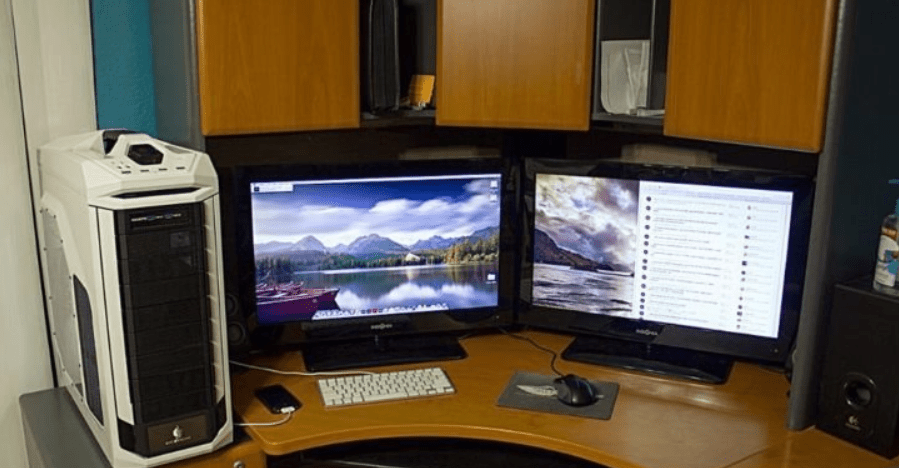
A tutorial for install OS X 10.10 Yosemite on a PC and thus discover the operating system APPLE on your PC.
Before we begin, please note that a complete installation of OS X on your machine will take about an hour. I recommend performing this operation with a blank hard drive, as all your data will be erased. Now, without further ado, let's get down to business…
As a reminder, Apple strictly forbids installing its OS on any system other than a Mac computer.
Prerequisites
- A computer with OS X (Mac, PC, virtual machine)
- An Intel PC
- A USB flash drive with at least 8 GB of storage
- An internet connection
1. Download OS X Yosemite
2. Create the bootable USB drive
We've covered creating a bootable USB drive in many tutorials. It's not necessarily a long process, but you need to be careful!
- Insert your USB flash drive
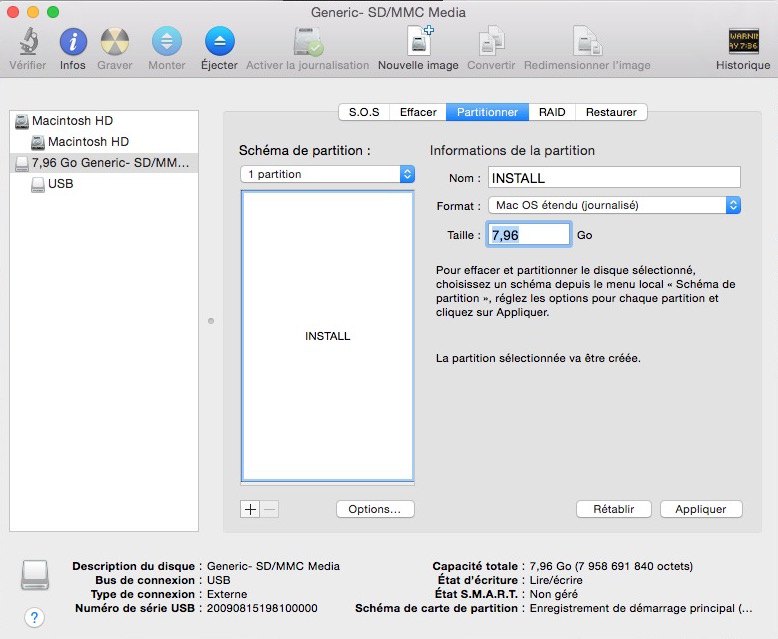
- Launch theDisk Utility
- Select your key in the left-hand side of the utility
- Click on the tab Partition
- Under the heading Partition diagram : click on Current
- Choose 1 partition then click the button Options…
- Choose Master Boot Record (MBR) and click the button OK
- You can name your USB drive if you wish.
- Sub-Format: choose Mac OS Extended (Journaled)
- Next, click on Apply
- Download and run UniBeast (If it asks you to switch to English, go through System Preferences Then Language and region and click on the small + (to install an additional language)
- Next, click on Continue, Continue, Continue And Agree
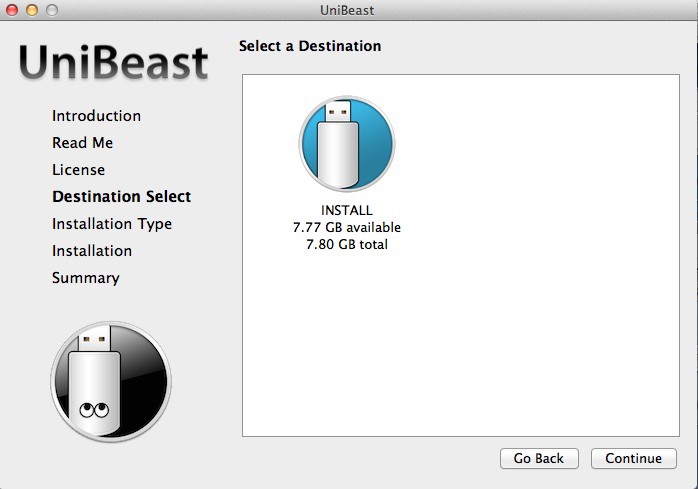
- Select your key USB and click on Continue
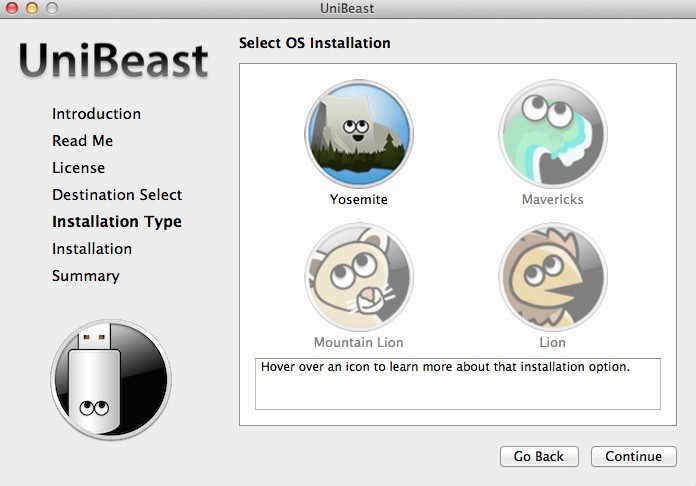
- Choose Yosemite and click on Continue
- If you are going to install Yosemite on a laptop, choose on this screen Laptop Support
- Click on Continuetype your password and finally click the button Install
Creating the bootable USB drive will take about fifteen minutes… It could even take an hour if your drive is old. Above all, do not touch the drive until the process is complete.
Finally, all you have to do is download/unzip and drag and drop MultiBeast on your USB drive to complete this step.
3. Configure your PC
Configuring the BIOS or UEFI is an important step. If it's incorrectly configured, it will prevent OS X from running properly. If you have a Gigabit motherboard, follow these steps. instructionsIf it's an ASUS, look over thereFor an MSI, it's this way.
As a reminder, to enter your BIOS setup mode, you usually need to press the DELETE key. Generally, here are the settings to change first:
- Load Optimized Settings if possible
- Choose the mode AHCI for SATA if it hasn't already been done
- Disable VT-d if your processor supports it
- Disable CFG-Lock
- Disable the safe boot mode
- If you have the choice of Operating System Type, choose Other.
This step is important, don't neglect it!
4. Install Yosemite
Let's now begin installing OS X on your computer:
- Turn on your computer
- Press F8 Or F12 to choose the bootable USB drive
- On the startup screen Chimerachoose your key USB and press Entrance
If you encounter problems during installation, you will need to (at a minimum) type -x to validate and therefore launch the installation. Also test one of the following parameters GraphicsEnabler=Yes (if you have an nVIDIA 9xxx, 2xx, 4xx, 5xx graphics card), PCIRootUID=0 Or PCIRootUID=1 (black screen problem) or even npci=0x3000 (disables the integrated graphics card). Also, don't forget the -v which allows switching to verbose mode. It is also possible to combine them: –x PCIRootUID=1
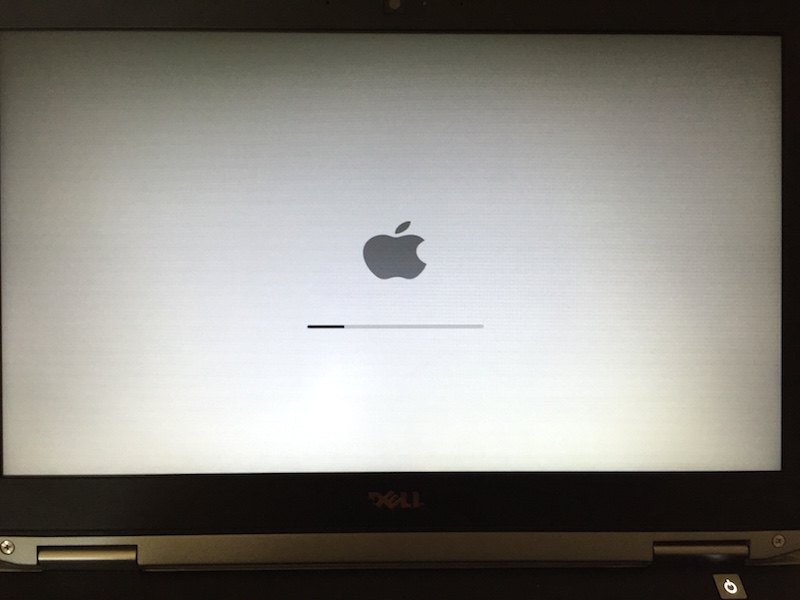
When the installation starts, you will be asked to choose your language…
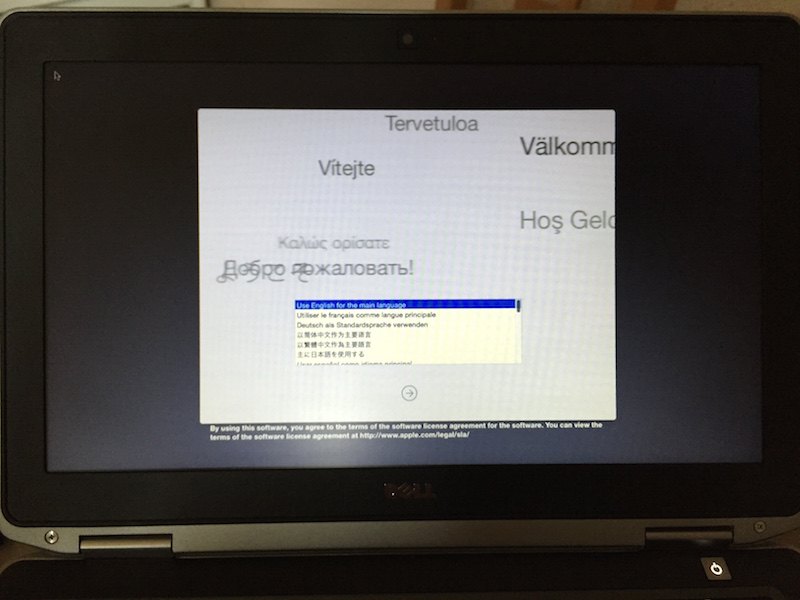
Next, you need to prepare the hard drive on which you will install OS X. Note that the settings are not the same as for preparing a USB drive. You must go through the following steps:
- Launch theDisk Utility
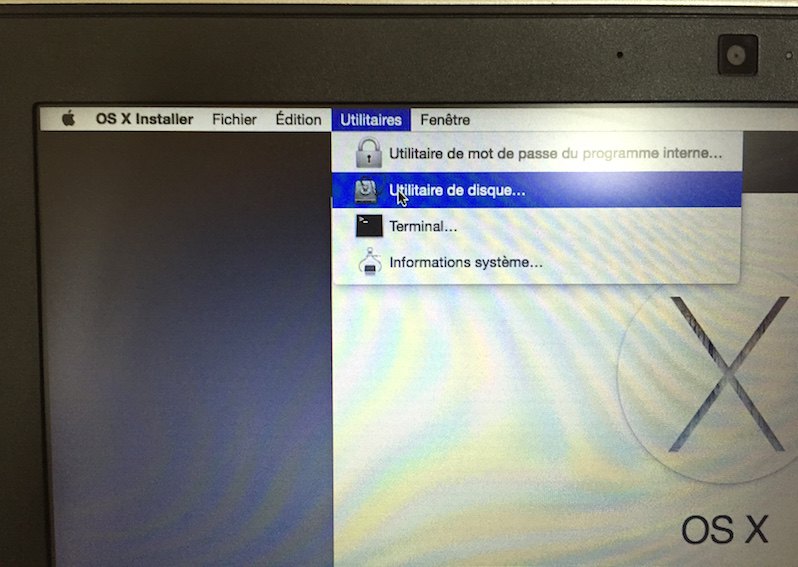
- Select your disk in the left column
- Partition diagram : select 1 partition
- Button Options… Choosing well GUID Partition Table
- All you have to do now is follow the installation steps. At the end, your Hackintosh will restart automatically…
Final adjustments
Congratulations, if you are reading these few lines it means you have successfully installed OS X Yosemite on your PC which was previously running Windows.
- Start your PC and press F8 or F12 to choose once again your USB drive
- At the boot screen ChimeraChoose your brand new installation
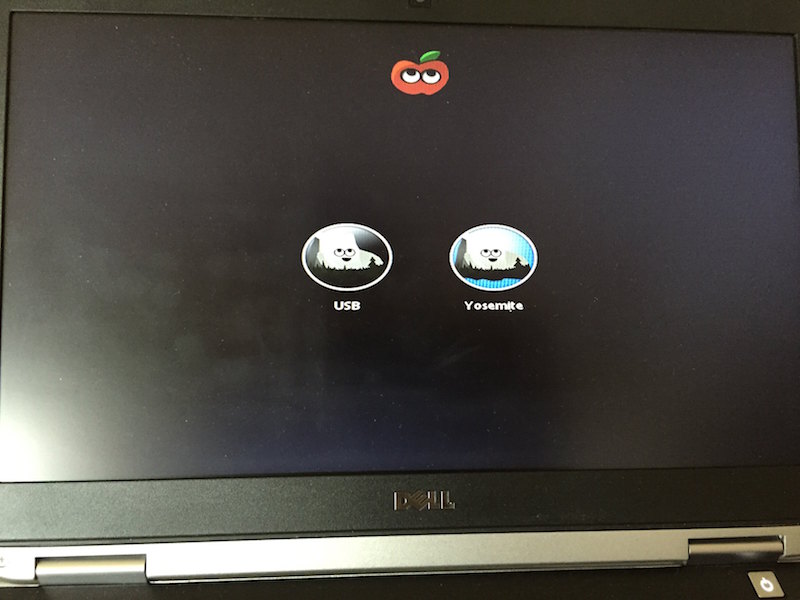
- Finish your OS X installation
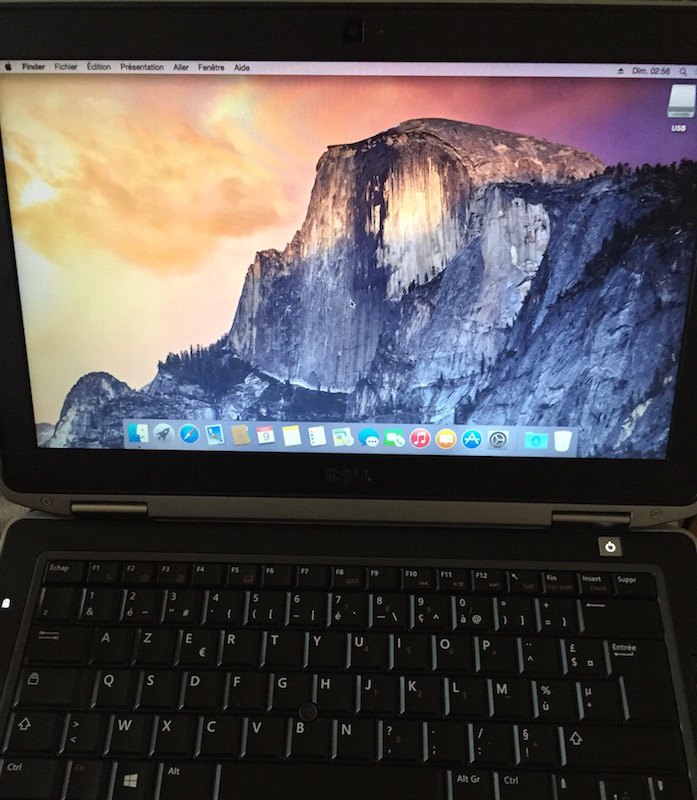
There you go.OS X Yosemite installation is complete… but there are still 2 or 3 small things to sort out.
- Launch Multibeast from your USB drive
- Choose Quick Start top left then EasyBeast, UserDSDT Or DSDT-Free
If this is your first Hackintosh and Multibeast If you're completely unfamiliar with it… a brief explanation is in order. Multibeast is an all-in-one post-installation tool that will activate the boot disk (on your PC), install the necessary files for audio, networking, and graphics cards. The choice EasyBeast is the simplest solution for the proper functioning of OS X on your PC.
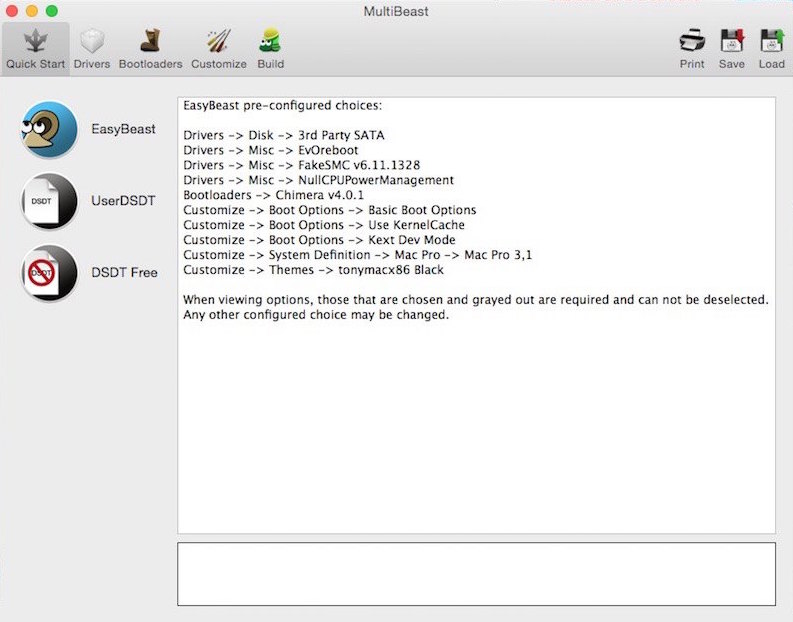
However, depending on your computer and especially its components, some features may not work. Take a look! this way To try and find your PC's motherboard, download the DSDT (.aml file) corresponding to your configuration and use UserDSDT via Multibeast.
After applying Multibeast (button) Build), all you have to do now is restart your Hackintosh, remembering to remove your USB drive.
If, despite everything, some components still don't work (the WiFi, for example), Multibeast can also install... generic driversIt will be important to be familiar with the technical specifications of your PC if you wish to take full advantage of it.
This article was updated on December 17, 2015