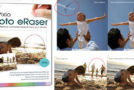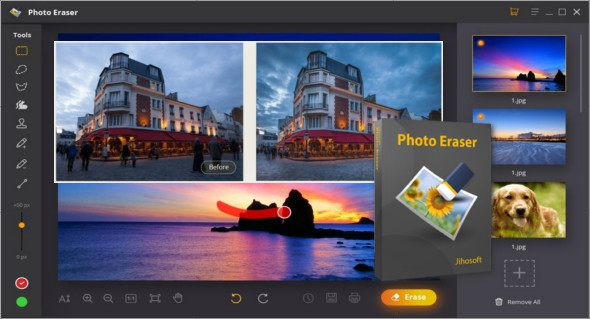
Jihosoft Photo Eraser 1.2.2 is a magical program that allows you to remove unwanted objects from images like never before, quickly and easily removing objects completely and without leaving any traces on the image background.
The software has amazing features, and the resulting image will be incredible. You can edit objects within an image. Remove watermarks, logos, date stamps, posters, text, and other unwanted elements. Correct imperfections on people's faces, including wrinkles, acne, pimples, and stubble. Restore photos to black and white. Clone yourself into the image to create a unique picture.
Here are the different tools included in the Photo Eraser software:
• Rectangle selection tool. This tool is used to apply the red mask and green donor to rectangular images.
• Lasso Selection Tool. This is another selection tool, familiar to those who work in Photoshop. You can freely choose the area where you want to apply a red mask and a green donor. Drag the mouse over the area you wish to select.
• Polygon Selection Tool. This selection tool allows you to apply the red mask and green donor. Simply click and release the first point located above the object's area. Continue until the object is covered.
• Brush tool. Select unwanted elements by covering them; you can even change the size of the Brush tool using the Brush Size slider.
• Attach the selection tool. This tool is somewhat similar to the Brush tool. This tool corrects the selected area if there is a problem with the image, but only the brush of the area you want to correct.
• Sampling Stamp Tool. This tool is very easy to use. It allows you to copy an area of the photo and then use that selected area to correct any other area of the photo. For example, to remove birds from the sky, simply copy a section without birds and then overlay the birds.
• Smart Clone Tool. This tool is used to clone any person or object in a photo. Simply select the element or part of the photo you want to clone and duplicate it in another location within the photo.
• Red mask. By default, the selected area will be covered by this red mask if you use a selection tool in this application's toolbar. This selected red mask area will be cleared when you select the Clear button.
• Green Donor. This is similar to the red mask, as it also marks the area you have selected. You will first need to click the Green Donor button, and then the entire selected area will be covered with a green mask. This feature is used to repair any missing parts in photos.
Configuration :
– Windows (x64 Bits): 7, 8, 8.1, 10
– Processor: 1 GHz
– RAM: 1 GB
Language : English
Size : 30.3 MB
This article was updated on February 11, 2019