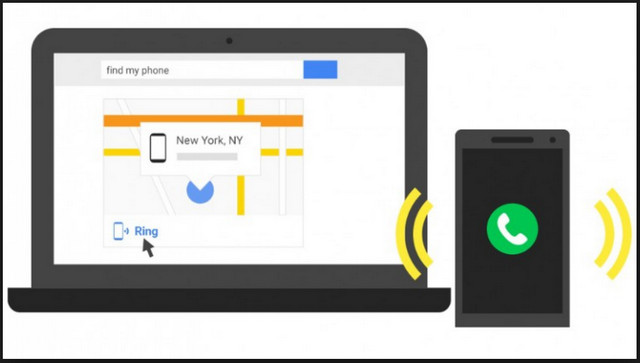
The device manager AndroidAccessible via a web browser, this feature allows you to locate your device and remotely reset it if it is lost or stolen. Another function makes the phone ring for 5 minutes to help you find it.
To use it, you don't need to install anything on your computer or your device. AndroidYou simply need to be logged into your account. GoogleThis means that internet access is essential to manage the device remotely.
Discover in this tutorial how to activate the Android device manager and use it in case of loss of your mobile phone.
1. Enable Android Device Manager
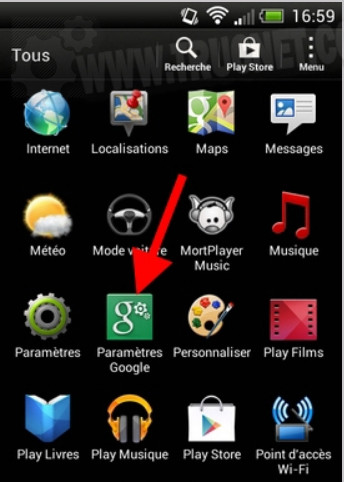
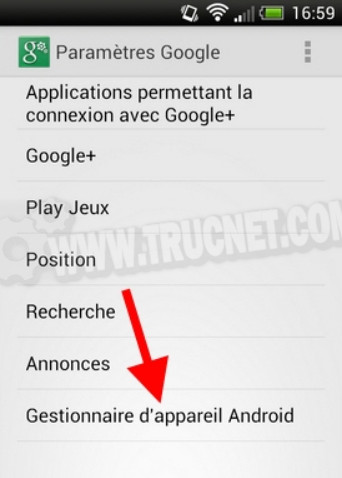
To begin, go to the menu of all your applications and open the application " Google settings »:
Then press " Android Device Manager »:
You then have two options: locate your device remotely to determine its approximate position. Androidand a second option that allows you to remotely erase all the data on the device:
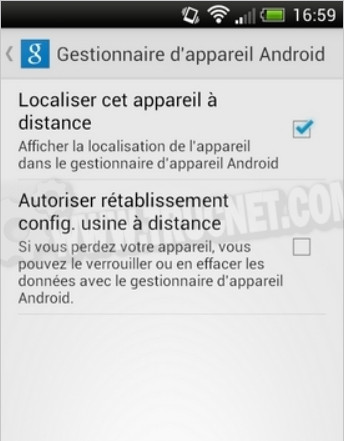
For remote location tracking, you must have previously activated the location services of Google on your mobile phone.
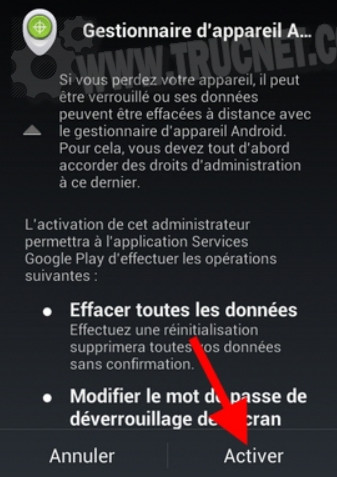
To restore factory settings remotely, you must check the option and press " Enable » in this window:
2. Use the Android Device Manager
In case of loss or theft, log in to this address: http://www.android.com/devicemanager
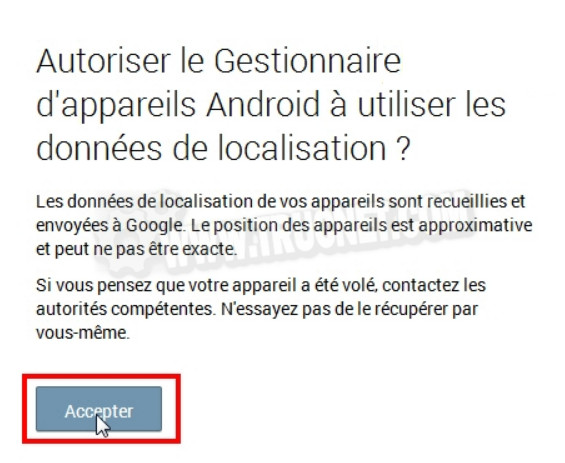
Click on " Accept » to allow the use of location data:
Access to your device is being processed:
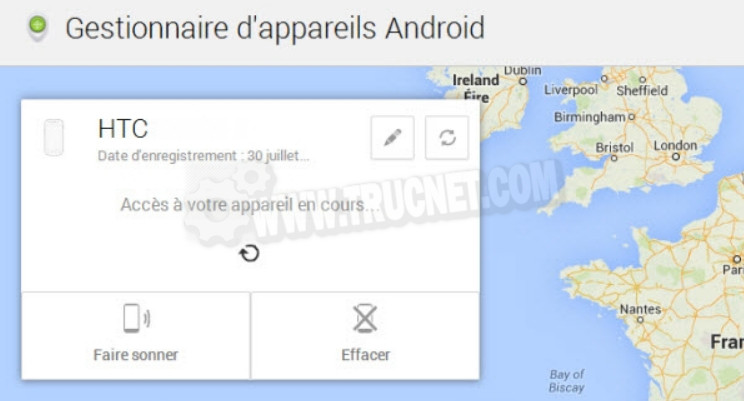
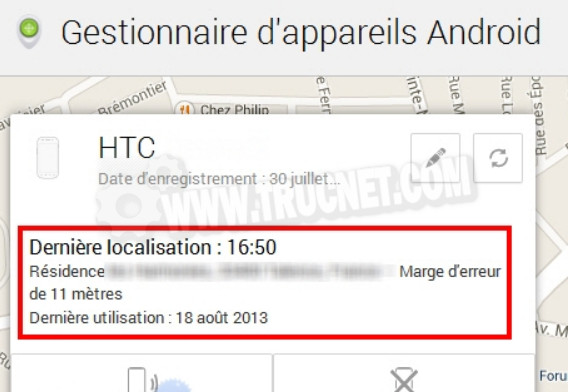
After a few moments, the approximate location of your device will be displayed:
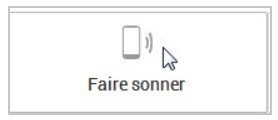
You can also make your mobile phone ring by clicking on the corresponding button:
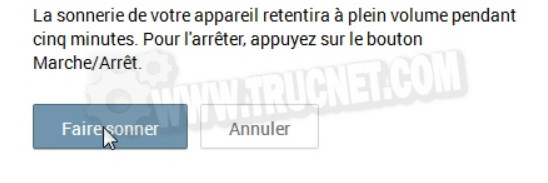
Then confirm in the window that appears:
Finally, if you wish to erase all data from your device remotely, click on the " To erase »:
Read the small text in the window that appears carefully, then confirm whether or not you want to delete your data:

You have reached the end of this tutorial, which will allow you to add extra security to your device. AndroidUnless you prefer to opt for more comprehensive anti-theft solutions like those offered by some antivirus programs. But Android Device Manager It remains an interesting alternative because there's no need to install any applications. Furthermore, one might think that Google will add additional features in the future.
This article was updated on February 10, 2016