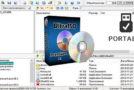
UltraISO's most important function is not burning the ISO file (for copying a DVD, for example) but rather its ability to transform into a virtual CD or DVD drive.
Reading a virtual CD or DVD (the ISO file) in the virtual drive that is UltraISO is called "Mounting an image".
The act of extracting a virtual CD or DVD (the ISO file) from the virtual drive that is UltraISO is called "Deconstructing an image".
First, you need to install the software UltraISO if it is in its installable version or simply place its folder in Program Files (x86) if it is in portable version.
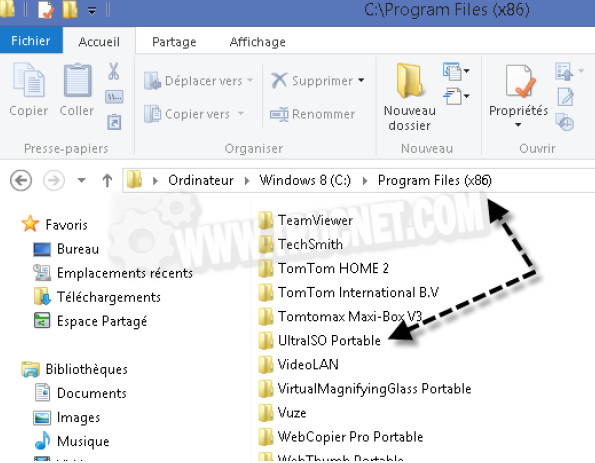
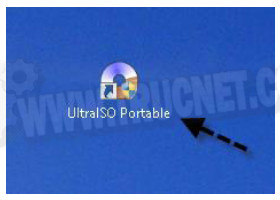
For the portable version, it will be necessary to enter the "UltraISO Portable" folder and then create a shortcut on the desktop for "UltraISOPortable.exe".
Download UltraISOPortable
Launch UltraISO by double-clicking its icon.
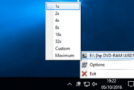
The first thing to do is to declare a virtual CD drive to Windows. This will be added to the physical CD drive already present on your PC.
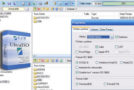
Go to "Configure / Configure" then to the "Virtual Drive" tab and set the number of devices to 1.
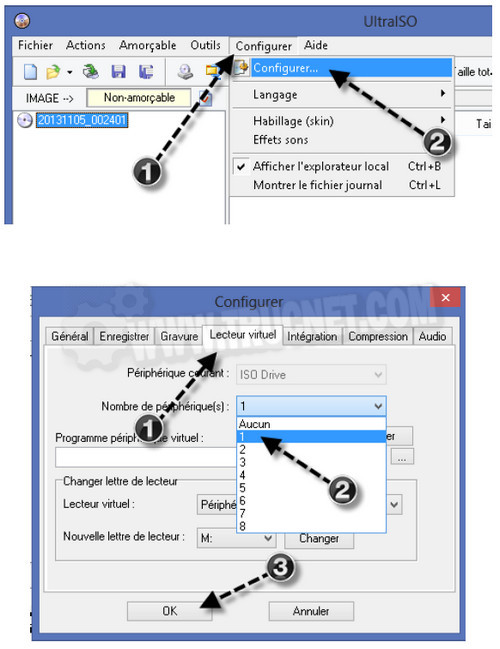
Confirm by clicking "OK".
This only needs to be done once.
Let's now assume you have an ISO image of the "Tell me more v10" software. You don't want to burn this file because it's over 5 GB and therefore requires the use of a dual-layer DVD (which is quite expensive).
So you will "mount the Tell me more disk image" in UltraISO and this will have the same effect as inserting the actual DVD of the software into your actual CD drive.
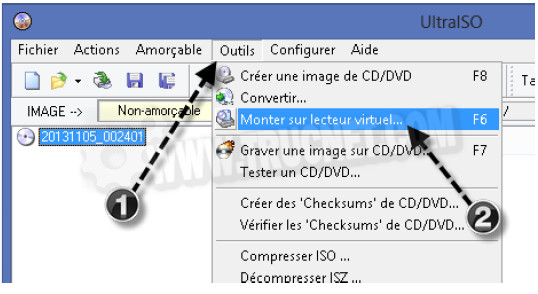
To do this, either go to "Tools / Mount to virtual drive" or press the F6 key.
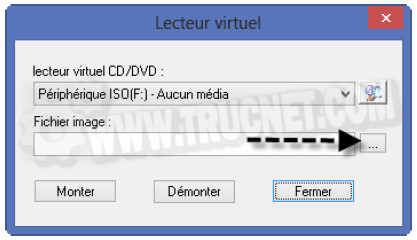
A window will open asking you which ISO file to use. Click the "…" button, which is the "Browse" button, and select the ISO file of your choice from your hard drive.
For example, it will be "Tell.Me.More.English.V10.Ten.Levels.DVD.iSO.iso".
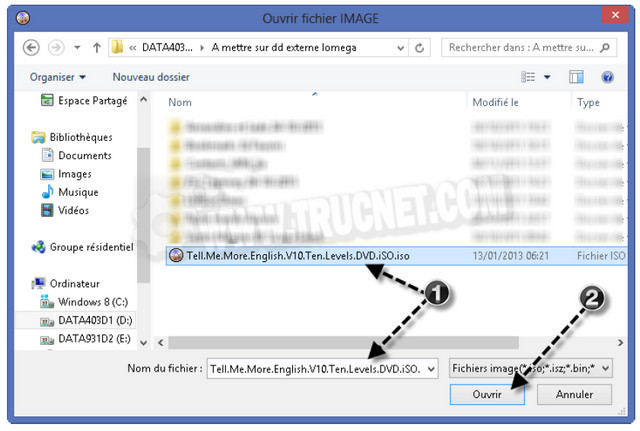
Confirm by clicking on "Up".
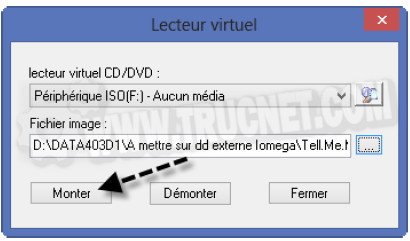
Just as you would remove your actual CD from the actual CD player after use, here you will need to click on "Unmount" to do the same thing with the virtual DVD.
Finally, either the software installation starts automatically or you go to your CD-ROM drive in My Computer and manually start the software installation.
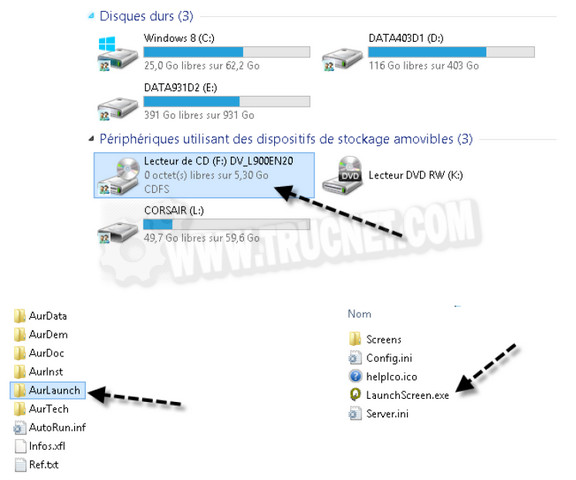
Remember to mount the disk image each time you use the software. Of course, you don't need to reinstall the software every time you use it, only the first time.
The software will be launched from the shortcuts created during installation.
This article was updated on March 7, 2016