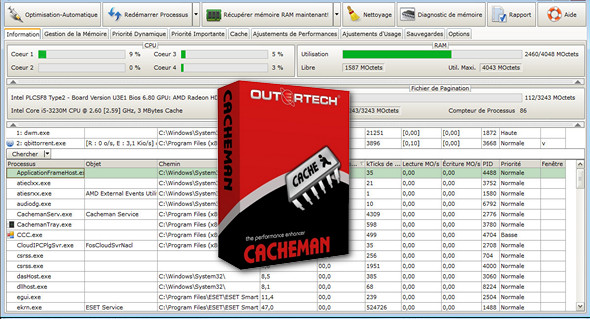
Outertech's Cacheman system tool offers the best methods for speeding up Windows 10, 8.x, XP, Vista, and Windows 7. Cacheman optimizes multiple caches, manages computer memory (RAM), adjusts registry settings, and accelerates the PC by dynamically changing process priorities. Automatic optimization makes Cacheman suitable for novice users, while it is powerful and versatile enough for IT experts.
Cacheman offers a one-click auto-optimization feature to scan your computer and automatically apply the best system settings and adjustments to improve PC responsiveness and stability. You can optimize your computer for specific uses by selecting a configuration profile. Individual auto-optimization profiles include Gaming, Laptop, Netbook, Server, Maximum Stability, Desktop, Digital Audio Workstation, Graphics, CAD Workstation, and Windows Tablet.
Internet Accelerator
Cacheman also functions as an internet accelerator by optimizing Firefox/IE DNS cache settings and Internet Explorer server connection settings. In addition to its internet accelerator capabilities, Cacheman adjusts the local area network (LAN) connection, including the settings of a Windows file server. Cacheman has you covered with an advanced backup feature that lets you revert to your settings with a single click!
Speed up your PC by optimizing the cache
A computer cache is a special high-speed storage mechanism. If the requested data is present in a cache, it can be delivered more quickly. Cacheman can improve your computer by modifying the cache components. You can use Auto-Optimize to obtain the best settings for all cache parameters. Alternatively, all settings can be configured manually.
Managing computer memory (RAM)
Cacheman takes memory management to the next level. You can define which applications are most important to you. When your system runs out of RAM, Cacheman will remove it from non-essential programs and allocate it to the most important ones. This is a drastic improvement over the default Windows memory management.
Displaying RAM and CPU usage
Cacheman can display from 1 to 5 icons in the notification area. In the Options tab, you can configure which system information should be displayed. By default, Cacheman displays free memory and CPU usage for individual processor cores as numbers. You can also change the type (graph, block, number) and colors of the tray icon display. The Options tab also allows you to modify the visual appearance of the main Cacheman window.
Manage running applications
Cacheman can also display a list of loaded Windows processes (applications and system services) along with detailed information, including RAM and CPU usage. Cacheman can remove crashed applications from memory, even in situations where Task Manager fails! Right-click the application name and select Kill Process to remove a non-responsive application from memory in a second.
Define process priority continuously
In Windows, an application (process) can be temporarily set with a higher or lower CPU priority. When a higher priority is set for a process, Windows will allocate more resources to it. A low-priority process will only receive resources if your computer is idle. Cacheman offers the ability to permanently set a process's priority, so it survives a program restart and even a computer restart.
Configuration:
– Windows (x32/x64 Bits): XP, Vista, 7, 8, 8.1, 10
– Processor: 1 GHz
– RAM: 512 MB
– Disk space: 10 MB
Facility :
1. Run Cacheman 10.10.0.11.exe
2. Choose interface language English (We will translate it into French later).
3. Choose Best of all worlds and Optimize.
4. Restart the PC and launch the Cacheman icon located on your desktop.
5. In Options, set to French, check to launch Cacheman at Windows startup.
Portable version
1. Run Cacheman 10.10.0.11.exe
2. Choose " Unpacking portable version"
Language Multilingual (French included)
Size 6.6 MB
This article was updated on April 23, 2017