To prevent a family member or friend from accessing your data, you can protect your sensitive files with a password.
To this end, dozens of Windows utilities allowing access to folders with a password are available for download, but they are very often complex to use and require time to configure.
A tip that will allow you to protect a file And all this without any software.
- The first step is to create a .bat file; to do this, open the program " Notepad "(notepad) is insert this piece of text into it and save it as locker.bat.
cls @echo off title Folder Locker IF EXIST "Control Panel.{21EC2020-3AEA-1069-A2DD-08002B30309D}" GOTO UNLOCK IF EXIST "LOCK" GOTO LOCKK IF NOT EXIST Locker GOTO MDLOCKER echo folder created. :CONFIRM echo do you want to block this folder? (Y/N) set/p "cho=" IF %cho%==O GOTO LOCK IF %cho%==o GOTO LOCK IF %cho%==N GOTO END IF %cho%==n GOTO END echo invalid choice. GOTO CONFIRM:LOCK ren Locker "Control Panel.{21EC2020-3AEA-1069-A2DD-08002B30309D}" attrib +h +s "Control Panel.{21EC2020-3AEA-1069-A2DD-08002B30309D}" echo locked folder. GOTO END :UNLOCK echo Please enter your password to open this folder: set /p "pass=" IF NOT %pass% ==test GOTO FAIL attrib -h -s "Control Panel.{21EC2020-3AEA-1069-A2DD-08002B30309D}" ren "Control Panel.{21EC2020-3AEA-1069-A2DD-08002B30309D}" LOCK echo Folder successfully unlocked. GOTO END :FAIL echo Invalid password! GOTO END :MDLOCKER md Locker echo Private folder successfully created. :LOCKK ren LOCK "Control Panel.{21EC2020-3AEA-1069-A2DD-08002B30309D}" attrib +h +s "Control Panel.{21EC2020-3AEA-1069-A2DD-08002B30309D}" echo folder locks. GOTO END GOTO END:END PAUSE
- You can replace the default password in the code " test » by the password you wish to add to the file.
- Save the text file as my_secret_box.bat (<= be sure to use the BAT extension)
- Now click on your new .bat file. A folder named "Locker" will be created automatically. Place all your files to hide in it.
- Click on your .bat file again. A black Windows console window will open and ask if you want to block these files. Type Y if yes, or N if no. Press ENTER.
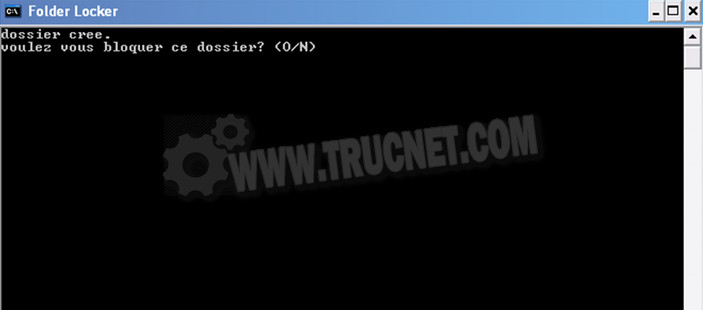
- Your folder has disappeared. Click on the .bat file if you wish to unlock it. The black Windows console will open and ask for your password. Enter your password and press ENTER.
There is another solution that allows you to protect a file and which works well under Windows XP, Seven or Windows 8. To do this, you need to create a folder named " secure " For example.
- Open the program " Notepad Insert this snippet of text into Notepad:
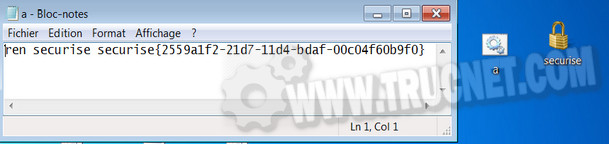
ren secure secure.{2559a1f2-21d7-11d4-bdaf-00c04f60b9f0} - Save the file created with Notepad under the name MyFile.bat For example .
- Copy to your folder secure all the files you want to hide, and double-click on the file MyFile.bat To activate the protection, you will get this:
- To unlock it: right-click on MyFile.bat, Then " To modify Replace the previous text with:
ren secure.{2559a1f2-21d7-11d4-bdaf-00c04f60b9f0}secure - Save the file, and then double-click on it. MyFile.bat
This article was updated on January 21, 2016