Windows 10 freezing/crashing on startup, unexpected restarts, missing or unstable features, a system that's becoming increasingly slow… Fortunately, Microsoft has included a feature to reset which allows you to perform a Windows 10 repair very easily and without losing your data !
Launch the Windows 10 repair program
To repair Windows 10, you will need to launch the Windows 10 reset program. To do this, you must take into account the situation you are in:
1 – If Windows 10 no longer startsWe will launch the reset program from a Windows 10 installation media.
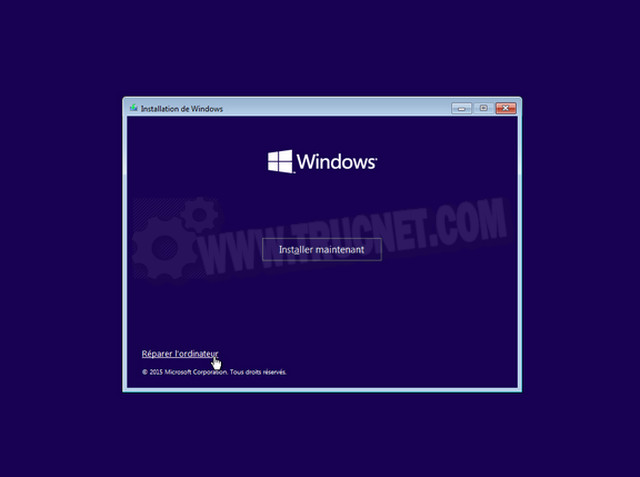
Start your PC from a Windows 10 installation media (USB drive or DVD). After confirming the language settings on the first screen, click the link Repair the computer.
Click on Troubleshooting.
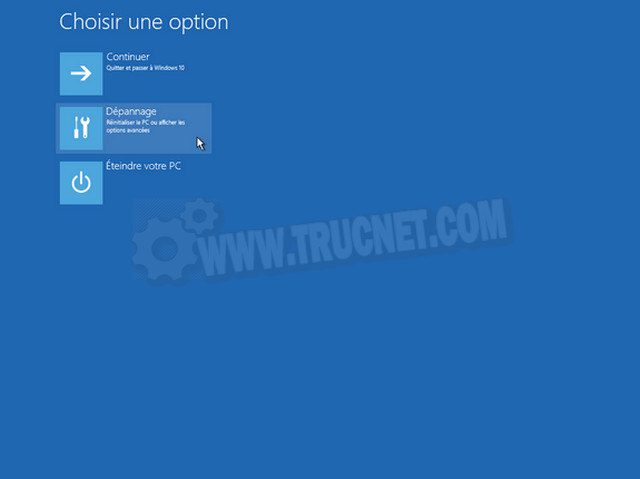
Then on Reset this PC.
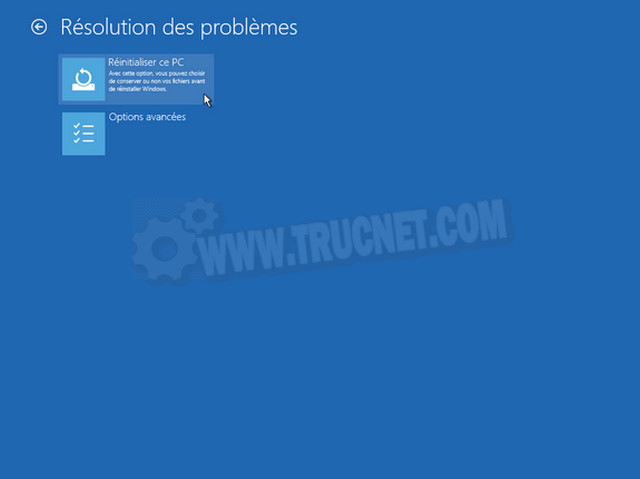
Next, proceed to the following step to learn how to configure Windows 10 repair.
2 – If you still have access to Windows 10We will then launch the program directly from Windows 10.
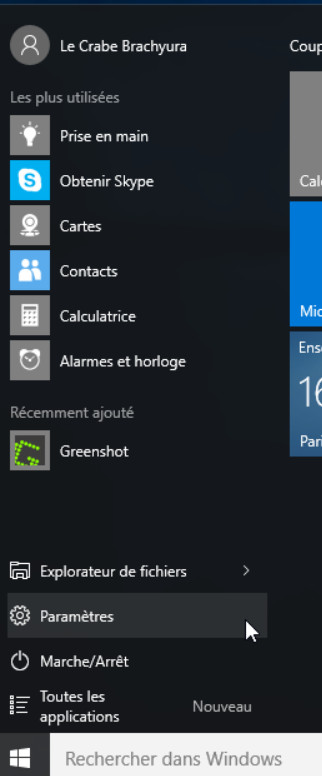
– Open the Start menu and select Settings (or press the Windows + i keys simultaneously).
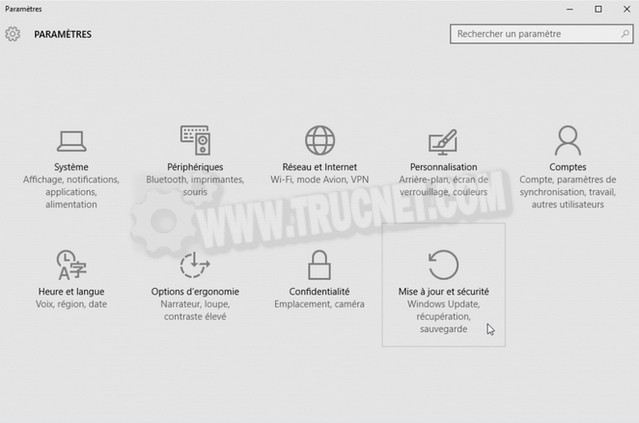
In the settings panel, click on Update and security.
In the left column, select Recovery then click the button To start in the section Reset this PC.
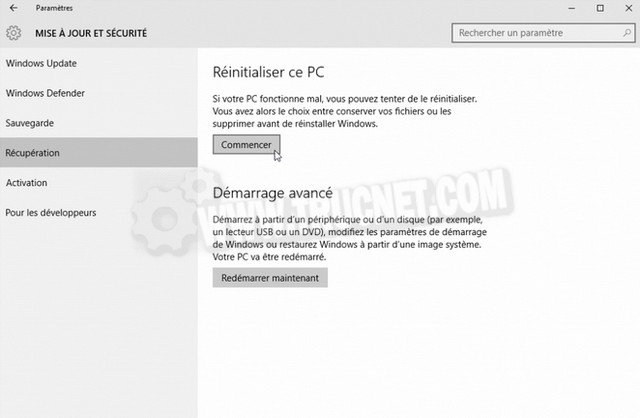
Next, proceed to the following step to learn how to configure Windows 10 repair.
Configure Windows 10 repair
Select the option Keep my filesThat will repair Windows 10 without deleting your personal files or changing your settings. However, all software you installed from websites and DVDs will be removed!

The program then displays a list of software that will be removed during the Windows 10 repairOnce Windows is repaired, you will simply need to resume using it and reinstall your software one by one.

After reviewing the actions the program will perform, click the button. Reset to launch the Windows 10 repair.

Depending on your PC's performance, the Windows 10 repair will take more or less time
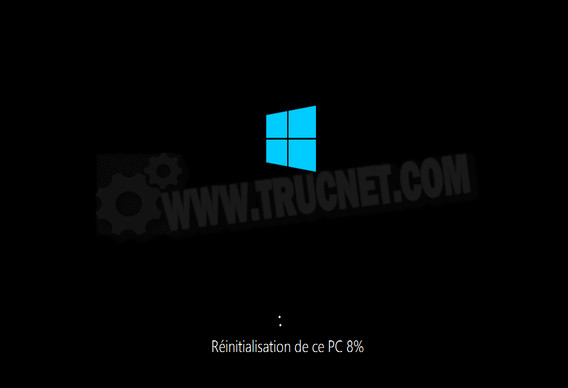
Windows should (normally) be back to normal. Now, remember to reinstall any software that was removed by the reset program.
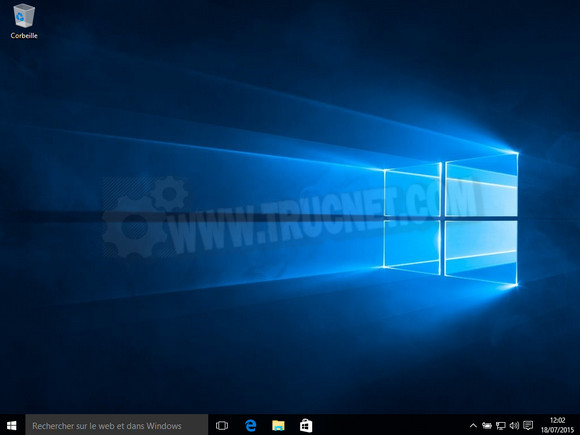
And there you have it, Windows 10 has been successfully repaired.
This article was updated on April 11, 2016