To have Linux on your PC, you can install it on a dedicated partition or use a Live CD. But if you don't have a Live CD and you want to test an application, there's still the option of using an emulator.
Of course there is WINE, but the latter emulates the entire Linux system (which is heavy) while Foreign Linux will simply translate the requests of the Linux system into their Windows equivalent.
Foreign Linux is an open-source tool that allows you to run Linux binaries under Windows. The goal is to run Linux programs within a Windows environment.
To use it, start by download the package Then extract the archive to your desktop. Next, run the run_bash.cmd file.
Next, type the following command to install the program you want:
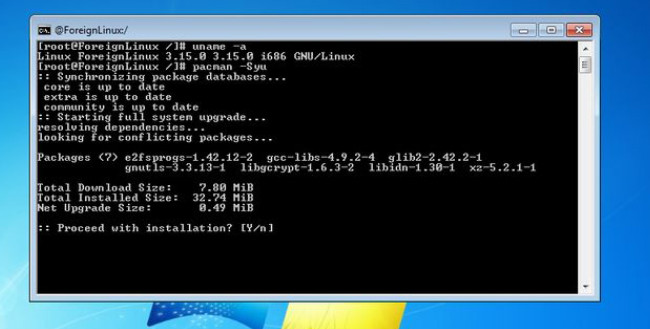
The Foreign Linux development team has implemented the kernel's system calls and mapped them to those of Windows so that the binaries can run under Windows. Of course, this is very experimental, so be careful, but for now it allows you to run small utilities like nano, vim, bash, wget, curl, ssh, games like pacman and nethack, and development tools like python and gcc, etc.
Currently, Foreign Linux does not support file permission management, process management, multitasking, etc. Therefore, programs that require these features will not function.
This article was updated on January 8, 2016