Have you just migrated from Windows 7, 8, 8.1 to Windows 10? Please note that your license key is no longer the same!
There is a small program to retrieve this key, which will be essential in case of reinstallation.
OPA BACKUP
Opa Backup will back up your OFFICE activation (2013, 2010, 2007, 2003) and will create an .opa file to be backed up to external storage.
To re-import your key, simply reinstall the software, restore the backup, and then locate the .opa file in the backup location.
The software can be downloaded HERE
Instructions for backing up your Office license:
Insert a USB drive, then double-click on opabackup34.exe and click Yes to run as administrator.
Next, select your Microsoft Office edition, click Next, then select "Create a backup" and click Next.
Then click on the 3 small dots (…) to search for the location of your USB key and once the location of your USB key is selected click on Next.
Your license backup is located on your USB drive and is named: Backup-Microsoft_Office_…..opa
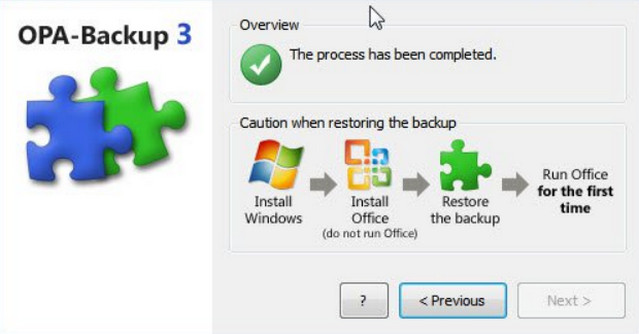
Instructions for restoring your Office license:
1. Install Windows
2. Install Office (without launching it once installed)
3. Restore the backup with opabackup and your inserted USB key containing your previously saved activation.
4. Launch Office (for the first time)
Note Restoring the backup only works with the same computer.
This article was updated on March 13, 2016