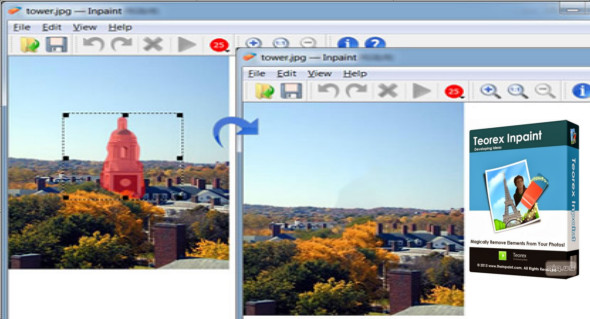
InPaint can be used to remove dust and scratches from a scanned photo, and to remove any unwanted objects from your photo, such as logos, watermarks, extra power lines, people, text, etc. The program will automatically mark the selected area for erasure. You can also use Teorex PhotoStitcher.
The process is incredibly simple: draw a selection around the object you want to remove from the image and perform the smart removal selection. InPaint will fill the selection area with a texture intelligently generated from the surrounding image data. A truly magical feature—you should try it!
If you do not obtain the expected results, perform one of the following operations, then experiment until you obtain the desired result:
• You can modify the area limit used in the paint application (rectangular area around the selection, with resizing handles).
• Go back to your edits, one step at a time (in the task pane, click Undo last action) and try more precisely to select the object you want to delete.
• Or if you think the selection is correct, try applying it again (each inpaint procedure is unique and next time you have another image).
Main reasons to use Inpaint
– Repairing old photos
– Remove watermarks
– Remove unwanted items
– Digital face retouching
– Remove date stamps
– Easy to start
Version : 9.1 /Portable: 9.0
Language : Multilingual (French included)
Size : 46.49 MB
Configuration:
– Windows (x64 Bits): 7, 8, 8.1, 10
Teorex Inpaint 9.1 + Portable
This article was updated on April 17, 2021