When you're using Windows and you love installing all sorts of things from more or less dubious sources, you need to know how to stay vigilant.
You probably have a properly configured antivirus and firewall. But if you're even more reckless, virtualization software is a plus.
Toolwiz Time Freeze simply offers to freeze your Windows system while you perform your small operations.It is now possible to safely test a dubious program without risk of altering the system.
Indeed, Toolwiz Time Freeze is a useful, lightweight and easy-to-use software. It allows a system to be restored to the state it was in before a risky operation or infection.
This program will simply clone your work environment, virtualize it, in order to attempt risky operations: surfing a shady site, opening an unsafe attachment or installing software without a security signature.
Before performing these actions, switch to a virtual machine to avoid infecting your PC. If there is no risk, the changes will be made to your actual system.
How to use Toolwiz Time Freeze?
To freeze your computer with Time Freeze: download the program and start the installation. Do Install now when you are presented with the user agreement and accept the restart that will be offered to you.
When you return to the Windows desktop, you'll see a new icon at the bottom of the system tray near the clock. Hovering your mouse over it will show you whether the different protection modes are enabled or not.
When you are about to do something that could be risky for your PC, click on Start TimeFreeze in the main window.
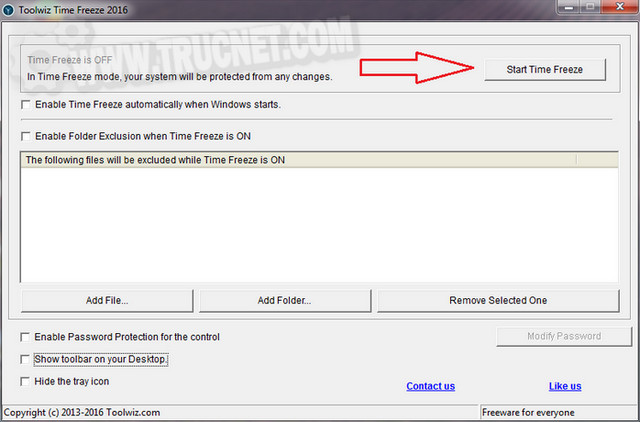
When you have finished with your potentially dangerous operations, do Stop TimeFreeze.
A window will then ask you if you want to return to mode Normal taking into account the changes made, or conversely, restarting the PC and reverting to the configuration that was yours before clicking on Start TimeFreeze. I advise you to scan your PC before choosing the first solution.
This article was updated on April 9, 2019