Updates aren't always a good thing. Sometimes Microsoft installs a Windows update that doesn't work properly and disrupts your system. Let's see how to clean up these updates and prevent them from automatically reinstalling.
Windows updates are very important because, in addition to improving certain aspects of your system (performance, interface, etc.), they patch critical security vulnerabilities. The problem is that these updates sometimes cause your system to crash or malfunction, whether it's a Microsoft error or a problem with your PC. The best solution is then to remove the problematic update while waiting for a fix. However, the issue is that it might reinstall itself, especially with Windows 10, which no longer allows you to stop updates. The Win Updates Disabler utility can, however, block this process.
STEP BY STEP 3 STEPS
1. Configure Windows Update
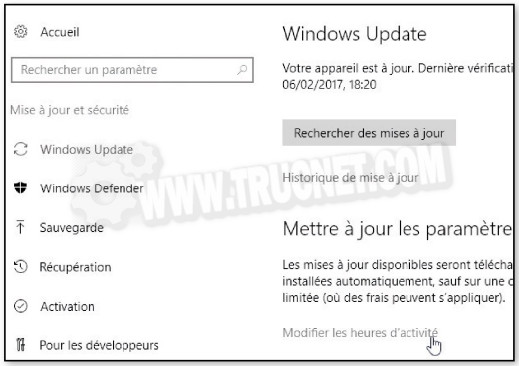
To manage updates, with Windows 7 go to the Control Panel, to the section Windows UpdateWith Windows 10, go to the Settings, section Miss up to date and safetyWith this latest version of the system, it's impossible to block automatic updates. But you can go to Change activity hours Or Restart options to avoid unexpected restarts after an update while you are working.
2. Uninstall updates
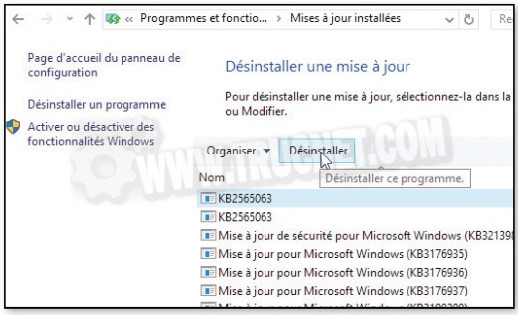
To uninstall an update, go to the section Programs and features of Control Panel (With Windows 10, right-click on the Start menu). Then click on the link View installed updatesOn the left. Windows updates are identified by the KB code. Click on the problematic update (often the latest one) and do Uninstall.
3. Freeze updates
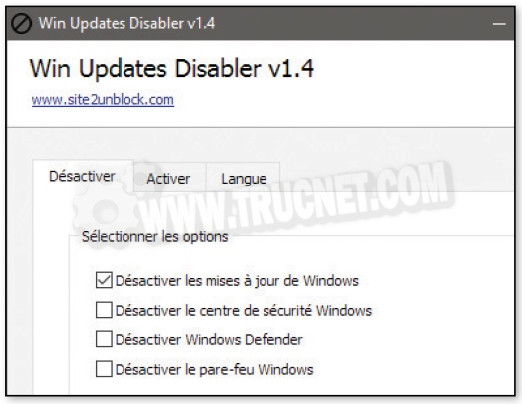
To prevent Windows from reinstalling this update while waiting for a fix to be released, you can use Win Updates Disabler, which will simply block updates. In the tab Disablecheck Disable updates of Windows and do Apply nowThis trick works with all versions of Windows since XP. Warning: Do not disable the Security Center, Defender, or the Firewall unless you know what you are doing…
This article was updated on September 26, 2017