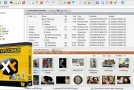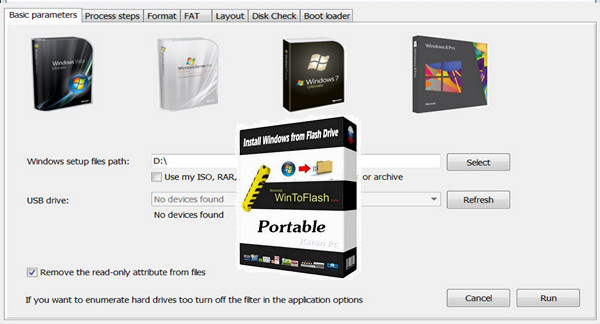
WinToFlash performs an amazing task: it extracts the contents of a Windows installation and transfers them to a bootable USB drive. It's safe to say that this extends the lifespan of your Windows installation, since CDs are very fragile, while USB flash drives offer greater flexibility.
Supports most versions of Windows
It is compatible with Windows XP/2003/Vista/2008/7/8/10 in all editions: Home, Professional, Media Center, Ultimate, etc.
You need a formatted USB flash drive (you can do this from the application) and the Windows CD/DVD.
Provides an assistant to help you
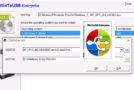
WinToFlash is very easy to use and requires no installation. Simply run the executable file and configure it using the first-time setup wizard in the user interface.
Manage a comprehensive set of parameters
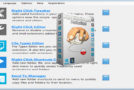
More advanced options allow you to perform more complex tasks, such as creating an emergency bootloader, a bootable MS-DOS drive, or erasing a disk.
In conclusion
Overall, WinToFlash appears to be a breakthrough in a market where Windows installations are primarily performed from a CD/DVD drive. It minimizes the chances of losing important data, making Windows installations last a lifetime. Furthermore, it supports multiboot, meaning you can add as many bootable devices to your USB drive as you deem necessary.
List of functions:
– Extract the contents of a Windows XP/2003/Vista/2008/7/8/10 installation disc and prepare the USB drive to become a bootable replacement
– Full support for 32-bit and 64-bit Windows
– Supports all editions of Windows – Home, Professional, Media Center, Ultimate, etc.
– Transfer a recovery CD or an OS (BartPE based on Windows XP/2003, WinPE based on Windows Vista/2008/7/8/10) to a USB flash drive
– Wipe a USB drive (destroying all data on it)
– Create a USB drive with the emergency bootloader for Windows 2000 / XP / 2003
– Transferring MS-DOS to a USB drive
– Create a USB drive with Windows XP / 2003 Recovery Console
– Format the USB drive to FAT16 or FAT32
– Adjust all FAT file system options for better compatibility
– Adjust any option in the partition table
– Select the bootloader for a USB drive, such as GRUB or Standard One
– Choose the partition type – CHS or LBA for better compatibility with certain motherboards
– Create an `aswers` file for the Windows installation. Add the serial number, username, etc.
– Windows installation program transfer process
– Check the USB drive for file system errors after the Windows installation program transfer process
– Fixed some Windows installation problems, such as 0x6B BSOD
– AntiSMS function to fix startup blockers (sending SMS messages to a short code / buying something / etc. to unlock your PC) or viruses
WinToFlash is a portable application that you can carry with you on a mobile device and use on any computer.
– Transfer profile support – save your transfer options and load them at any time
– Encrypting the Windows serial number in the profile with a password
– Detailed log file
– Updates
– Classic, easy-to-use interface, like the ntbackup utility
– Assistant with only two options for quick Windows installation transfer
– Multilingual support
What's new :
* Support for text license files
* Added a converter application for license files (both convert binary to text and text to binary license file)
* Improved multiboot item add dialog box
* Best checkdisk option
* Fixed some NTFS formatting issues
* Added an option to create a full binary image of a USB drive
* Added option to restore the complete binary image of a USB drive
* Added full support for the latest version of Windows 10
* Other minor changes to fix bugs
Configuration:
– Windows (x32/x64 Bits): XP, Vista, 7, 8, 8.1, 10
– Processor: 1 GHz
– RAM: 512 MB
– Disk space: 10 MB
Portable version:
Run the file WinToFlash.exe
Language Multilingual (French included)
Size : 8.5 MB
This article was updated on March 15, 2017