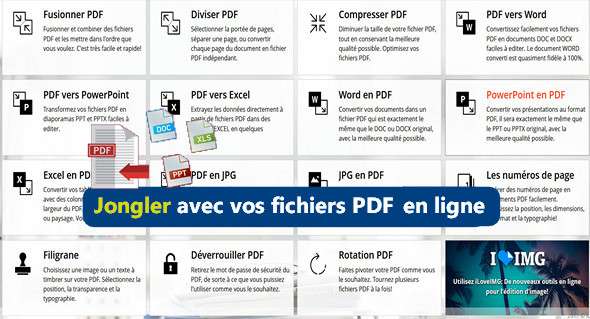
There are hardly any operations on a PDF file that the free iLovePDF service can't perform. And to top it all off, the interface is remarkably simple. A site to bookmark! iLovePDF website
Merging, splitting, compressing, converting Office documents to PDF and vice versa, extracting images… these are just some of the features available on iLovePDF. While the free version does have some limitations, such as a maximum file size, it doesn't add any watermarks and can be used without time or daily restrictions. Creating an account even allows you to slightly increase these limitations, again without paying. From a user-friendly perspective, iLovePDF is intuitive and surprisingly fast.
Excellent results
Converting PDF files to Microsoft Office documents (Word documents, Excel spreadsheets, PowerPoint presentations) yields excellent results. At least, that's the case if you open the document with the corresponding software. However, if you use LibreOffice or OpenOffice, some formatting work will be required due to the open-source suites' poor handling of Microsoft formats. If iLovePDF added conversion to the .odt format for these open-source suites, it would become the perfect tool!
Do everything with iLovePDF
In addition to alleviating the various limitations inherent in the free use of the service, creating an account allows access to user panelwhere you can find all the files uploaded to iLovePDF until their automatic deletion. Useful for heavy use.
1. Reduce weight
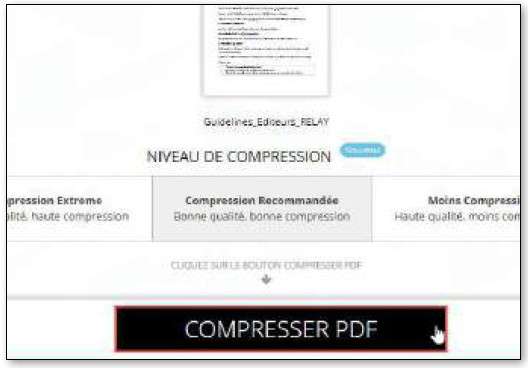
Very useful for reducing the size of a large PDF file and facilitating its transfer or storage, for example. Click on Compress PDF and drag the file onto the white space. Choose a compression mode from the three available and confirm with Compress PDFThe gain is variable, but expect at least 30 % less weight.
2. Convert to an editable file

Perhaps the feature that impressed us the most, as the adherence to the layout is almost perfect. Click on PDF to Word and drag the document onto the white space. Confirm with Convert to WordGenerally speaking, very little editing is required to obtain a perfect copy of the original PDF.
3. Extracting images
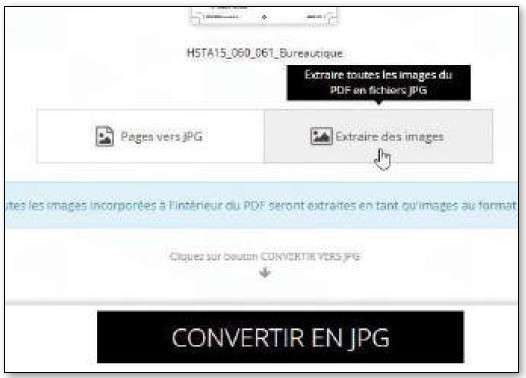
With PDF to JPGYou have the option to retrieve a JPEG file for each page of the original PDF or to extract all the images. After uploading the file, choose between the two options here. Extract imagesand launch the operation with Convert to JPGYou will receive a zip archive.
4. Add a Watermark
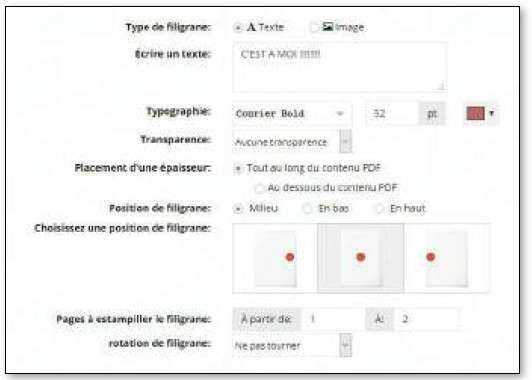
Very practical for adding a watermark in seconds that ensures your document is recognized in case of unauthorized reproduction. iLovePDF allows you to add text or an image. After uploading, you will be prompted to fill in the various fields and confirm. Add a watermark once finished.
This article was updated on October 11, 2017