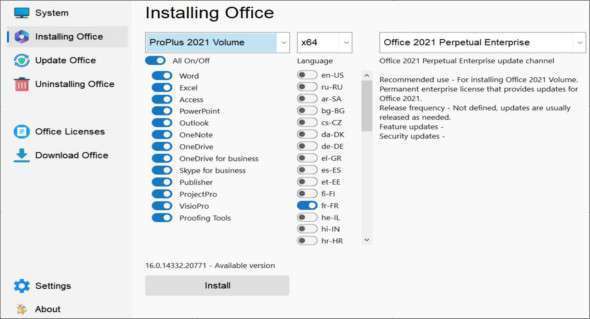
The program is designed for online and offline installation of Office 2016/2024 C2R. It is also possible to create your own Office distribution for later offline installation. You can also download Office Tool Plus.
Using the program:
1. Uninstall Office C2R using the Uninstall button.
2. Remove Office C2R using "Force Remove Office" and restart your computer.
3. Install Office by clicking the "Install" button.
Office Activation:
In the System tab, there is an "Activate Office" button and a drop-down list to select the online KMS service.
You can add your own servers to the program; to do so, you must enter them in the KMS parameter in Office Installer.ini, separated by commas. Example: "KMS = xxxxx.xxx:4533,yyyyyy.yyy". If no port is specified, the standard port 1688 will be used.
How to use the Office Download tab:
This tab allows you to create an offline distribution of a particular version and edition of Microsoft Office, for later installation of the product without receiving files from outside.
1. Select the required Office version, architecture, and language. You can create a complete x86-x64 distribution.
To do this, in the Bit Depth tab, select All (the lowest option). Click the Download button and select a folder for the distribution files. You can select the folder from the previous program session to continue creating the distribution; otherwise, a new session will be launched.
2. If you wish to complete the downloaded distribution, click the Download button and specify the same download folder.
3. After downloading all the necessary bits and languages, you can create an ISO image of the office suite. To do this, click the Create ISO button.
4. Therefore, in the selected folder, you will see a ready-to-use offline installation edition of Microsoft Office of your choice.
Version : 1.33
Language : English
Size : 28.21 MB
Configuration:
– Windows (x32/x64 Bits): 7, 8, 8.1, 10, 11
Download Office Installer / Office Installer Plus v1.33
This article was last updated on November 21, 2025