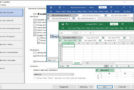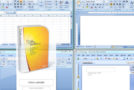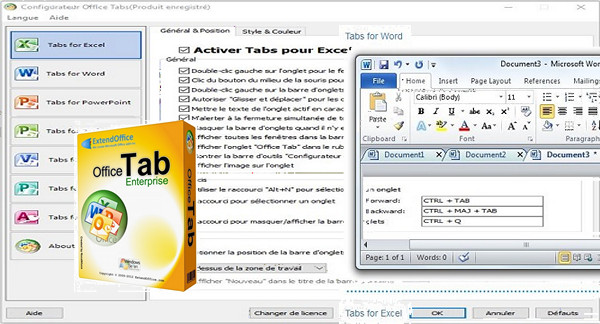
The Office Tab suite saves you time by enhancing the features of Microsoft Office 2003, 2007, 2010, and 2016, which now include an additional toolbar for managing all open documents in various tabs. Keyboard shortcuts and settings for pointing devices allow you to streamline opening, closing, creating, and navigating these tabs. Unlike browsers such as Internet Explorer 8, Firefox, or Chrome, Microsoft Office does not use the same window for viewing and editing multiple files.
Office Tab Enterprise supports:
– Open, read, edit and manage multiple Office documents from the tabs of a single window.
– Easy to use, just like IE 8, Firefox and Google Chrome.
– Save and close all Office documents with a single click.
– Based on Microsoft Office add-in technology.
– More features, more efficiency.
MAIN FEATURES
Record everything in one click
Save all documents, close all documents, close all other documents—all with a single click! If you have multiple files open, there's no need to save and close them individually; simply click "Save All" from the context menu, and all your files will be saved. Want to close all open files? Just select "Close All," and all your files will be closed.
Easy to use
The tabbed interface allows you to display multiple documents in tabs within the same window. Each document opens in a new tab within the window (not a new window), and you can access it with a single click. This feature makes you more efficient in Microsoft Office (Word, Excel, PowerPoint, Project, and Visio).
Move the tabs
The tabs can be easily rearranged by dragging and dropping them using the mouse. You can switch the active tab by pressing Alt + N ("N" being the tab number "1, 2, 3…").
High efficiency
Office Tab is based on standard Microsoft Office extension technology; the program has no impact on the performance of the Office application and is very small in size.
Easily rename your files
If you want to rename a file, there's no need to open the "Save As" dialog box. Simply click "Rename…" from the tab's context menu and enter the new file name. It's that easy! If you want to save the file to a new folder, simply access "Save As" from the context menu.
Full document name
Normally, if a document name is too long, the Windows taskbar will only display a shortcut. With Office Tab, the full document name will be displayed in the tab bar, regardless of its length.
Convenient context menu
Right-click a tab or the tab bar to access the tab or tab bar context menu. Office Tab also includes some common Microsoft Office commands for quick access to these functions.
Customize the appearance of the tab
The colors of the tabs and tab bar are customizable. Eleven different styles are available. The font and name of each tab can be customized to your liking (to apply these changes, you will need to close and restart Microsoft Office).
Lots of shortcuts
Office Tab includes many pre-configured or customizable shortcuts for managing tabs, hiding or showing the tab bar, switching between tabs, or selecting specific tabs. You can also easily customize the shortcuts.
Show/Hide the tab bar
You can place the tab bar at the top, bottom, right, or left of the workspace. You can hide the tab bar when there is only one tab. You can also show and hide the tab bar using a customizable keyboard shortcut (the default keyboard shortcut is "Win + Q").
Creating a new document
You can quickly create a New Document by double-clicking the left button in the empty space of the tab bar, or by choosing the "New" option from the context menu.
Document Registration
The context menu offers the options "Save" and "Save All," allowing you to save all your documents with a single click. Office Tab will mark these modified documents with an asterisk (*) added to the file name, indicating either the modified documents or the workbook version.
Opening the Documents
The context menu offers the following options: "Open," "Open in a new window," and "Open directory." You can easily open the file or the active directory (where the file is located), and open multiple tabbed windows.
Document Closure
The context menu offers the following options: "Close," "Close All," and "Close All Others," providing flexibility in closing your documents. You can quickly close the active document by double-clicking the left or middle mouse button from the tab.
Centralized settings management
Office Tab offers a powerful Settings Manager, from which you can configure all Office Tab settings. Settings such as enabling/disabling individual tabs, using shortcuts, displaying the tab bar at the top, bottom, left, or right, tab style, and customizing tab colors can all be managed from the Office Tab Manager.
Customizing the tab length
The tab length can be set automatically, adaptively, or fixed (the default length is "automatic"). Automatic: Displays the document name in the tab, as fully as possible. Adaptively: The name can be displayed completely in the tab if there is enough space. Fixed: All tabs have the same fixed size.
Configuration:
– Office Applications: Office 2003, 2007, 2010 and 2016
– Windows (x32/x64 Bits): XP, Vista, 7, 8, 8.1, 10
– Processor: Pentium 4 3GHz
– RAM: 512 MB
– Disk space: 20 MB
Facility :
The program is pre-activated; just launch the installation. Setup.exe
– Language Multilingual (French included)
– Size : 15.2 MB
This article was updated on February 17, 2017