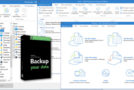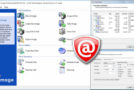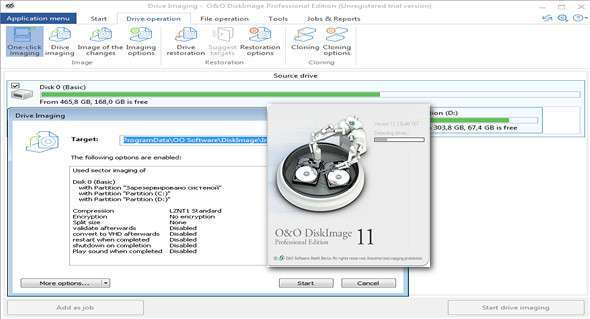
O&O DiskImage lets you back up an entire computer or individual files whenever you want, even while the computer is in use. If you lose your personal data, you can quickly restore it with just a few mouse clicks, even if Windows won't boot. It also supports SSDs and the latest UEFI system.
O&O DiskImage allows you to perform a system restore and duplicate or clone an entire PC or hard drive. You can even restore this backup to a computer with different hardware than the original, for example, if you've changed the motherboard or bought a new PC and want to restore an older backup to it.
Features:
– Back up an entire computer with the click of a button
– Backup systems and hard drives, cloned drives and entire disks
– New file-based backup: twice as fast as ever – back up and restore individual files and/or folders
– Direct creation of VHD
– Monitoring and warning of security risks
– Incremental/differential backup: save only the changes
– Easily restore files, folders, disks and drives
– System restoration on different hardware (MIR)
– Create a Windows boot system directly from the program with driver integration
– Plug-and-play: selected files and folders are automatically backed up and synchronized
– Supports Windows 10, Windows 8.1, Windows 7 and Vista
Key features at a glance
Regular backups are something many users prefer to avoid. At least until they experience their first loss of important files due to software, hardware, or user error: that's when it becomes clear how reliable and up-to-date a backup truly is!
All default and advanced features are combined into a single product.
This backup software is the safest and easiest way to avoid losing important personal files! Options are available for automatic backups and manual settings. Thanks to a unique recovery system that includes additional system recovery tools associated with O&O DiskImage, you can quickly restore all your important data, even if the backup you're using was created with an older version of O&O DiskImage.
Back up entire PCs, hard drives, or files with the click of a button.
When you back up a PC, O&O DiskImage saves all personal files as well as hard drive information and individual settings. This not only protects irreplaceable files, but in the worst-case scenario, it also saves you from having to perform a tedious reconfiguration of programs and the Windows operating system. O&O DiskImage allows you to back up an entire computer, system, and hard drives, or just individual files and folders.
Backing up data on a regular basis protects against data loss
To ensure your backups are always up to date, we recommend creating them at frequent intervals. O&O DiskImage can be configured to do this automatically, so data can be backed up, for example, once a week. To save disk space, you can set a maximum number of backups to be saved so that older ones are automatically replaced with newer ones.
Quick and easy system restoration – even on different hardware
Restoring a backup with O&O DiskImage is a piece of cake: simply launch the program, select the backup you want to restore, and you're done. Included with the software is our machine-independent restore feature, meaning your old backup can be transferred 1:1 to a new machine. Hardware from a different brand will be automatically recognized, and Windows settings will be configured automatically.
Plug-and-play function
Anyone wishing to save data to an external hard drive will find it even easier with the new O&O DiskImage 11. Thanks to its integrated plug-and-play functionality, selected files and folders can be automatically backed up as soon as, for example, the hard drive is connected to the computer. This is ideal for users who forget to perform regular backups or simply don't want to deal with the hassle. Once configured, the automatic backup function runs automatically.
Create a bootable media directly from the program
O&O DiskImage can bring a system back to life immediately and without any installation required. It does this using a bootable media (USB flash drive or CD/DVD) based on the currently installed Windows system and containing all the necessary standard drivers.
What's new:
– BSOD during image editing
– Missing data when restoring a split backup file with numbers in the name [] or (), when recovering split backup files
– The working paths are empty if “Preserve user settings” is deselected
Configuration:
– Windows (x32/x64 Bits): Vista, 7, 8, 8.1, 10
– Processor: 1 GHz
– RAM: 512 MB
– Disk space: 200 MB
Language : English
Size : 92.4 MB
This article was updated on November 16, 2017