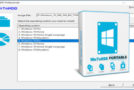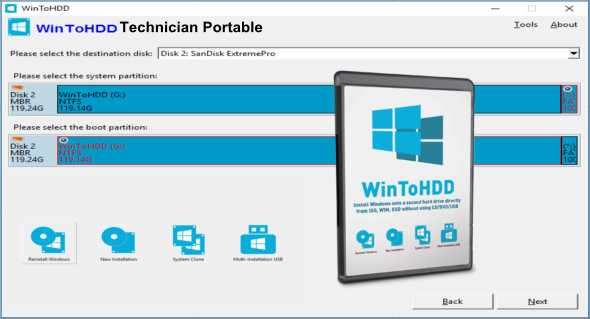
WinToHDD offers a convenient method for installing or cloning Windows without a disc or bootable drive. With this all-in-one Windows installation software, you can easily reinstall Windows, install Windows on disks other than the one where your Windows operating system is currently installed, or clone your existing Windows operating system installation (Windows Vista or later) to another disk.
Install, reinstall or clone Windows
WinToHDD comes with a simple and clear interface that has only four buttons: the first to reinstall the operating system on the local workstation, the second to start a new Windows installation on a second storage device (hard drive), the third to create an exact copy of the local system, and the fourth button to configure a bootable USB drive containing multiple ISOs is actually quite easy.
Follow the simple steps to create a WinPE image
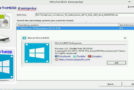
Whichever you choose, completing the task simply involves clicking a few "Next" buttons from this point on. As expected, you are prompted to select the source ISO file containing the Windows installation files. WinToHDD automatically reads the disk image data and retrieves information about the operating system and its architecture.
Next, you need to select the system partition on which Windows will be deployed and choose the installation mode. There are three options available: "Legacy" (standard mode), "VHD," or "VHDX." Whether you choose to install, reinstall, or clone Windows, it will take some time for WinToHDD to create the WinPE image needed to proceed.
Configuration:
– Windows (x32/x64 Bits): XP, Vista, 7, 8, 8.1, 10
– Processor: 1 GHz
– RAM: 1 GB
Language : Multilingual (French included)
Size : 18.4 MB
This article was updated on November 8, 2018